


InfoPath – Get user information without writing code (extended)
Posted by Clayton Cobb on June 21, 2009
In terms of free, out-of-the-box functions, I consider the UserProfileService to be the most powerful thing that can be used in SharePoint-based InfoPath forms. Itay Shakury made this wonderful blog post over two years ago that told us how to Get the current user without writing code. That blog post is so popular that Itay is still answering questions as recently as TODAY (June 20th, 2009). What we will talk about today is how to take this concept and extend it further so that you can get any profile info for any user by querying within the form after it has been opened through rules triggered by changed fields and buttons. One specific example will be to use the Manager node to get the manager’s additional info. Let’s begin…
Note: The following assumes you have already implemented the UserProfileService solution above, specifically the GetUserProfileByName method…
Another Note: The UserProfileService does NOT touch Active Directory. It only touches the Profile Database, which is part of the SSP, so it requires you to be importing profiles through the SSP to populate this database, because that’s where all the information comes from. The profile import pulls data from Active Directory, so it’s like connecting to AD, but not directly. Therefore, this web service is only available through MOSS and not WSS 3.0. For anyone who would like to do the same things but without having this web service, please consider using the Qdabra Active Directory Web Service that can be used in any type of InfoPath form as long as the organization uses Active Directory.
This write-up will be very involved, so in order to keep it from being 20 pages long, I’m going to explain certain concepts in detail ONCE, and then I will refer to that concept multiple times later without having to show more screenshots. Hopefully, that works. The 4 main ways we will be using the UserProfile Service:
- Populating default information upon form load
- Populating queried information with a button
- Populating queried information with a dropdown tied to a secondary data connection
- Getting Manager info
These are the steps we’ll take:
- Create form template with all relevant data elements
- Create layout table showing data groupings
- Create form library
- Create UserName custom list
- Create Data Connections – GetUserProfileByName web service, AutoFilename library Submit, and UserName list Receive
- Configure all fields and buttons – default values and rules
- Test Functionality
Create form template with all relevant data elements
You won’t need all of these for every form, but they are elements that I use for achieving some of the concepts. We’re combining all of the concepts, so you can either pick out what you need or build it all for practice, and then apply bits and pieces where applicable on your existing and future forms. The element names should be self-explanatory, so I’ll just use a screenshot to show you what should be built in the main data source (Fig 1)
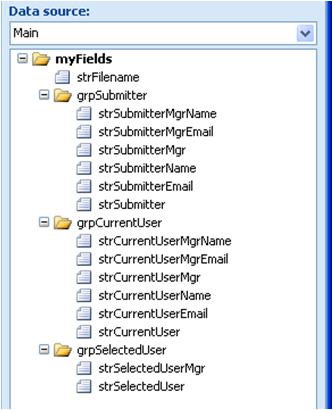
Fig 1 – Form template showing all relevant data elements
Create layout table showing data groupings
In reality, you won’t end up showing most of these fields on the canvas of your forms, but they are showing here for testing and demonstration purposes. I recommend hiding most of the fields like the ones showing usernames and instead showing meaningful ones like the name fields. Again, the picture should be self-explanatory up front, so just follow this structure (Fig 2). Add a row for that custom button, then just drag the button to the canvas and rename it. We will configure it later. Also, do the same for the Submit and Close (optional) buttons below the table.
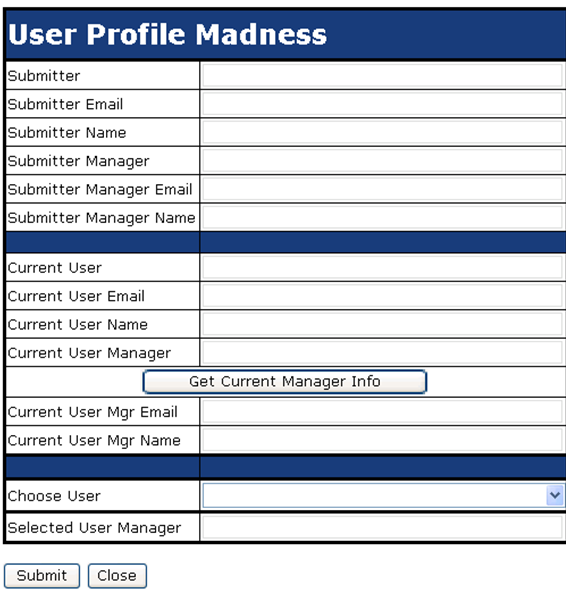
Fig 2 – Creating the layout table
Create form library
Create a basic Form Library on your SharePoint site. Go to Form Settings > Library Settings > Advance Settings > Display as Web Page (optional).
Create UserName custom list
Create a Custom List on your SharePoint Site. Change the Title column to UserName, and create another column named FullName. Populate this list with 3 known users (Fig 3) and be sure to use their exact username (i.e. ccobb) and not the domain name (i.e. domain\ccobb). For the Full Name, put whatever you prefer to use as a friendly name for that user.
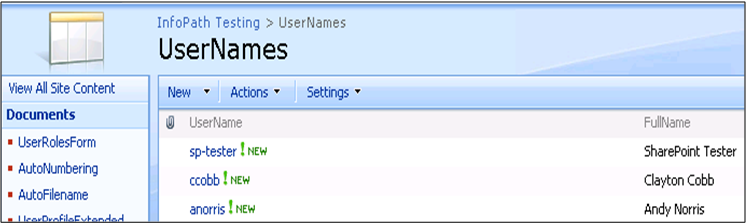
Fig 3 – Creating the custom UserName list
Create Data Connections – GetUserProfileByName web service, AutoFilename library Submit, and UserName list Receive
Create 3 data connections (Fig 4) starting with the GetUserProfileByName web method from the first part of Itay’s blog entry.

Fig 4 – List of all Data Connections needed
Next, create the Submit data connection for submitting the form to your form library while using the strFilename data element (Fig 5). Ensure you select “Allow overwrite if file exists.”

Fig 5 – Submit using strFilename
Lastly, create a Receive data connection for retrieving the list of pre-defined usernames and full names. Be sure to select those two nodes when connecting to the list (Fig 6)

Fig 6 – Retrieve UserName and FullName from custom list
Configure all fields and buttons – default values and rules
There is a lot of work to do here, so bear with me. I’ll try to consolidate the similar settings to hopefully make it quicker to read and do. We have logic built in 5 places (not including the Submit and Close buttons):
- strSubmitter – Default value and rules for setting other field values
- strSubmitterMgr – Queries web service and a rule for setting other field values
- Form Load – A rule for setting field values
- btnCurrentMgrInfo – A rule for setting other field values
- strSelectedUser – Bound to secondary data connection as a dropdown list, multiple web service queries, and actions for setting other field values. This field puts it all together into one action.
strSubmitter – Set the default value for this data element to the function userName() (Fig 7).

Fig 7 – Setting strSubmitter default value to userName()
Create a rule with 3 actions that sets the values of the other 3 submitter fields (Fig 8). Each action starts with “Set a field’s value,” but I have scrolled right to show the formulas. Each formula is from the 2nd half of Itay’s blog entry. I will show how to do the strSubmitterMgr rule as one example to follow for all three (Fig 9). The actions HAVE to be in this order, or at least make sure that strSubmitterMgr is last in line. Due to there being no conditions, this rule fires as soon as strSubmitter is populated by the userName() default value.
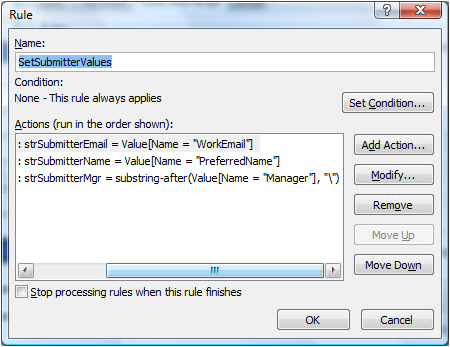
Fig 8 – Create a rule with 3 actions for strSubmitter
The formula for strSubmitterMgr is substring-after(Value[Name = “Manager”], “\”). The Xpath for that statement in my form is substring-after(xdXDocument:GetDOM(“GetUserProfileByName”)/dfs:myFields/dfs:dataFields/s0:GetUserProfileByNameResponse/s0:GetUserProfileByNameResult/s0:PropertyData/s0:Values/s0:ValueData/s0:Value[../../../s0:Name = “Manager”], “\”). I chose this for the example, because it is the most complicated. It is using the substring-after function to strip out all the data that comes after the backslash, because the value that returns for “Manager” is a full domain name (i.e. domain\ccobb). We only want the username (i.e. ccobb), thus the substring-after function. If you built your form exactly like mine, then you can click the Edit Xpath button and paste in the Xpath statement above. However, that would not teach you how to use the GUI to achieve this goal, and your forms won’t always follow this format, so this is how you create that formula (Fig 9).
- Set the Action to “Set a field’s value.” Select strSubmitterMgr in the Field box. In the Value box, click the function button (fx). In the Formula box, type substring-after(, “\”) – copy and paste if you’d like. Then, put your cursor before the comma and click Insert Field or Group.
- In Data Source, select GetUserProfileByName (secondary). Drill all the way down through the dataFields groups until you get to the Value node. Select the Value node, then click Filter Data.
- Click Add
- In the first dropdown, click select field or group. From there, do the same thing you did in step 3 above. Get back to the GetUserProfileByName data source and drill down until you see the Name node. Select that node, set the operand to is equal to, then set the last pulldown to the text of “Manager”
If done properly, then all of those boxes should look like Figure 9. Follow the same procedure for the other two fields in Figure 8 except for the substring-after function. Hint: at the Insert Formula screen, you can copy that statement and paste it in the same box when configuring other fields. You can then double click the Value[Name = “Manager”] part that is underlined and click through the settings to change the Name part of step 5.

Fig 9 – Creating the strSubmitterMgr formula to retrieve just the Manager’s username
strSubmitterMgr – As soon as the 3rd action from above completes for populating strSubmitterMgr, it is time to fire off another rule with 4 actions (Fig 10). The first 2 actions have to be in that order, and they have to be first. The last 2 actions are interchangeable. Be sure to place these rules on the strSubmitterMgr field and not the strSubmitter field!
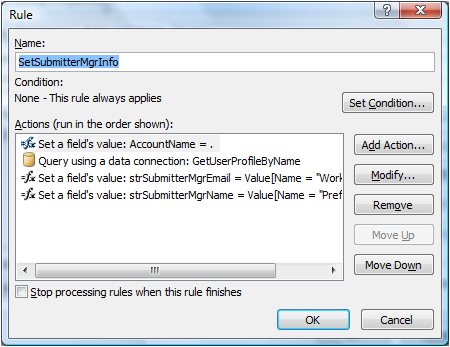
Fig 10 – Create a rule with 4 actions for strSubmitterMgr
You already know how to do the last two actions, because they are exactly the same as the strSubmitter actions. Just be sure to remember and set the field values for strSubmitterMgrEmail and strSubmitterMgrName. We’ll now focus on the first two actions. The Query using a data connection: GetUserProfileByName is extremely simple. You just click Add Action and choose Query using a data connection in the Action pulldown. It then gives you another pulldown of data connections where you choose GetUserProfileByName. That’s it.
The first rule requires some direct attention, because it is where the magic happens for this entire blog entry. It looks simple and actually is simple, but it’s the part that people never think of or just don’t realize it can be done. All we are doing is setting the AccountName field to the current field’s data. Ok, so what is this AccountName field? We never created such a thing! Ah, well it’s the only node in the queryFields group of the GetUserProfileByName data connection. We are taking the Manager’s username from strSubmitterMgr and sending it to this field just before querying that web service. This sends the Manager’s username to the web service so that it will return the data set of profile information relevant to the Manager instead of the Submitter. This is the key to getting information other than the current user’s!
Here’s how you do it (Fig 11). Click Add Action. In the Action pulldown, select Set a field’s value; in Value, select strSubmitterMgr (should show a dot afterwards); in Field, click the Select a Field or Group button. In Data Source, choose GetUserProfileByName (secondary), then drill down through the queryFields nodes until you reach the AccountName node. Select it and click OK. Pretty simple, huh?

Fig 11 – Sending a new query value to the GetUserProfileByName web service
Form Load – For the form’s Open Behavior, you will set a rule with 8 actions, all of which you have done already in this blog entry (Fig 12). Here is a quick list of the actions and their formulas
- strCurrentUser – Set field’s value to userName()
- AccountName – Set fields value to strCurrentUser
- Query GetUserProfileByName
- strCurrentUserEmail – Set field’s value to Value[Name = “WorkEmail”]
- strCurrentUserName – Set field’s value to Value[Name = “PreferredName”]
- strCurrentUserMgr – Set field’s value to substring-after(Value[Name = “Manager”], “\”)
- strCurrentUserMgrEmail – Set field’s value to NULL
- strCurrentUserMgrName – Set field’s value to NULL (setting these to NULL so that btnCurrentMgrInfo works properly without keeping saved data in these fields when re-opening)
These steps are sending the current user’s username to the GetUserProfileByName web service, which returns a data set of profile info that is used to populate three other fields of information about the current user – WorkEmail, PreferredName, and Manager. This may be the same info as the submitter, but it can accommodate users other than the submitter.

Fig 12 – One rule with 12 actions to perform each time the form opens
The reason why we’re using the a default value on strSubmitter and a rule for strCurrentUser is because using a default value makes the data populate once and stay the same during subsequent edits. Since our current user may not be the same as the submitter, we must use a rule when the form opens to set strCurrentUser to the current user’s username while the strSubmitter field will always have the original submitter’s username. All of the Submitter fields populated above will remain static, because there is always only one submitter. The CurrentUser fields will always be dynamic depending on who opens the form.
btnCurrentMgrInfo – This is the button labeled Get Current Manager Info. This button will have one rule with 4 actions that are identical to the strSubmitterMgr rule above except that the data will be sent to different fields (Fig 13). You start by setting the AccountName of the GetUserProfileByName web service to the username of the current user’s Manager. You then query the web service with the Manager’s username, which returns a data set of profile information about the current user’s Manager. You then set the current user manager fields to their respective values of WorkEmail and PreferredName. This example is just illustrating how you can use a button to populate such info.
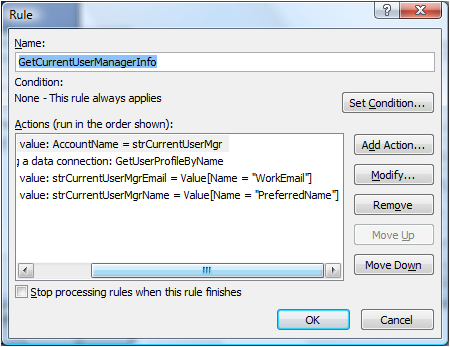
Fig 13 – One rule with 4 actions to perform on a button push
strSelectedUser – This example puts a lot of concepts together into one simple action of choosing a dropdown selection. You start by changing your strSelectedUser control to a dropdown box (the field next to Choose User). You then configure the dropdown to pull data from the UserNames list (Fig 14). First, you choose the radio button for Look up Values from an External Data Source. In the Data Souce, choose UserNames. In Entries, click the button and select the UserNames repeating group, then click Ok. For Value, choose the UserName node, and for Display Name, choose the FullName node. What this is going to do is show the user some friendly Full Names, but the values behind those selections will be actual User Names.

Fig 14 – Configuring strSelectedUser as a dropdown bound to the UserNames list
Next, create one rule on strSelectedUser with 5 actions (Fig 15). Again, these actions are now familiar, but we’re combining multiple steps into one rule and using one new concept. We first set the web service’s AccountName node to the value of strSelectedUser, which if you recall is the actual User Name of the name chosen in the pulldown. Next, we query the web service. Then, we take the User Name of the Manager of the person selected and set the web service’s AccountName to this value. Basically, we’ve iterated through the earlier processes in this blog entry without using separate data fields. We now have yet another data set of profile info, which allows us to do the last step. The last step is to set strSelectedUserMgr to the Full Name (FirstName concatenated with LastName) of the selected user’s Manager. So think about it, we started with a user selected in a pulldown and jumped all the way to that user’s manager’s friendly Full Name all in one simple click.
For the 3rd action, remember to use this formula to get the Manager’s username: substring-after(Value[Name = “Manager”], “\”). On the 5th step, use this new formula for concatenating the FirstName with the LastName (these are attributes from the web service): concat(Value[Name = “FirstName”], ” “, Value[Name = “LastName”]).
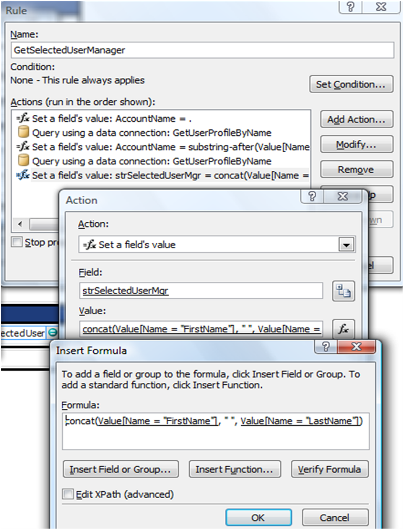
Fig 15 – Creating one rule with 5 actions on the strSelectedUser pulldown
The custom Submit button is optional, but if you’d like to use that concept, please use my other write-up on that topic: Auto-Generating Filenames for InfoPath Forms.
Test Functionality
Publish the form, go to the form library, then click New. In my example, I’m logged into the browser with an account named SharePoint Tester, and I am its manager. The form should be completely populated in the Submitter section, and it should be partially completed in the CurrentUser section. Notice the info is the same due to the fact that you are the submitter AND the current user, since you created this form as new. The Current User Manager info is not populated, because we have to push the button to populate it. The Selected User section is blank, because we have select a user from the pulldown first (Fig 16).

Fig 16 – Testing a new form
Submit your form, then re-open it with a different user account. In my example, I started with a tester account and then logged in as myself to view the submitted form. Notice that the Submitter information hasn’t changed, but the CurrentUser info now reflects the new user’s info, including that user’s manager’s username. Click on the Get Current Manager Info button and watch the next two fields get populated with the Current User’s Manager’s information (Fig 17).

Fig 17 – Current User info is dynamic and a button can be used to retrieve user profile info
For the last test, we will make a selection in the Choose User pulldown and see what happens. Choose one of the names in your pulldown and see if it populates the Selected User Manager field with that person’s manager’s full name (Fig 18).
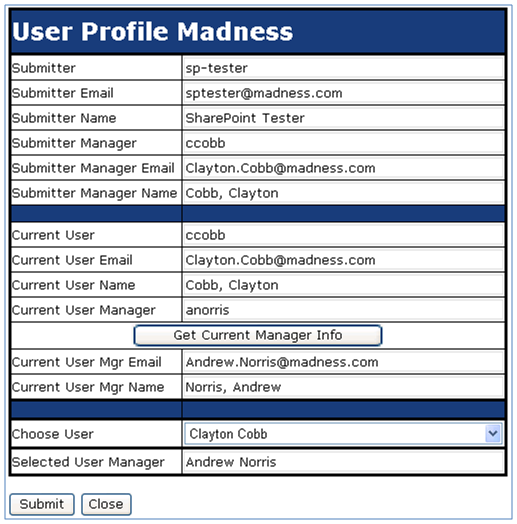
Fig 18 – Use the value from a pulldown to determine that user’s manager’s Full Name
 Clayton's SharePoint Madness
InfoPath – Get the current user without writing code (extended) | Web 2.0 Designer said
[…] Go here to see the original: InfoPath – Get the current user without writing code (extended) […]
M. Masterson said
You are AWESOME! Thanks for putting this together. I now understand what you meant in your InfoPathDev.com reply. My problem was trying to set/change the AccountName parameter of the UserProfileService web service.
Clayton Cobb said
MM, thanks for commenting. Your reply alone makes it worth all the time spent putting this together.
I. Sharkansky said
Clayton,
This is an amazing article. I’m relatively new to InfoPath and it helped me to understand a lot of things. But I still ran into a problem. When I test my form, the user info doesn’t come up. Do you have any suggestions in this case? I followed all the steps you wrote above.
Thank you.
Clayton Cobb said
Are you using 2007 or 2010? Have you configured your Profile Import and confirmed that the user’s profile data is populated?
Larry W. Virden said
Thank you so much for such a detailed blog!
Early in the blog, you say:
I recommend hiding most of the fields like the ones showing usernames and …
How do you recommend hiding of the fields?
Removal of the controls containing the information just makes future use of the fields more difficult, doesn’t it? I thought about using the conditional formatting option of hiding the control, but that requires a condition and I’m uncertain how best to define that condition.
I can certainly see how, if there were a way to do it, conditionally hiding the info, then allowing a maintenance person the means of indicating “now, display all the fields” would make debugging a form much easier…
Clayton Cobb said
Larry, by “hiding,” I just mean to not put those on the canvas. All of these are administrative fields that wouldn’t normally be shown on the canvas, but I put them there for testing. If you end up having a bunch, and you think the form will need to be debugged a lot, then you could create a boolean field with a checkbox that only displays to a certain user or group of users. If that box gets checked, then all the administrative fields can show up for debugging. This would require all those fields to be on the canvas and hidden via conditional formatting that says if the Admin checkbox is FALSE, then hide. Or, you could create an entirely separate view showing all these controls and make that view not show up in the Views dropdown. When testing in preview mode, the form admin could switch to that view in the toolbar and debug it. There are many ways to go about doing this and all should be simple.
Larry W. Virden said
Clayton, I have been thinking about doing something like this (hiding administrative fields conditionally) for the past few days on a form that I’m building. I have several controls whose fields are used as “working data variables” which don’t need (and in some cases should not be) displayed to the normal user.
I have been trying to figure out how to implement the admin checkbox so that admins can access it to turn it on or off, but the average user wouldn’t see it or be able to modify it. I’m not certain how to set things up so that most people don’t see something, but certain people, or even better people in a certain distribution list, sharepoint list, or sharepoint group DO get to see it.
Do you know of any articles that cover that sort of topic?
Thank you so much for taking the time to answer my questions.
Clayton Cobb said
Larry, as an addition/revision to my User Roles article, I have a new method for more easily restricting portions of the form based on a person’s group membership by using GetCommonMemberships. A colleague at work was fumbling around with the idea and thought it would make sense to try that method. ‘Lo and behold, it works wonderfully, so I’m going to amend that article. However, remember that this idea is only necessary for browser-enabled forms. For rich client forms, you can simply use the User Roles function that you find in the Tools menu. It works like a charm.
Clayton Cobb said
Larry, did you read my User Roles post? https://claytoncobb.wordpress.com/2009/06/14/user-roles-in-browser-enabled-forms/. This is only necessary in browser-enabled forms. If you are using Rich Client, then simply use the User Role function to specify a group of people who can see a certain control. Or, use roles to determine who can go to a special admin view.
Marc Molenaar said
Very good post Clayton. Exactly what I need because, like you, I am also a non-developer MOSS consultant. Doing everything without writing code is preferred.
Larry W. Virden said
Clayton, I have read that article, though I don’t understand it all yet.
I am writing browser enabled forms, so your instructions are relevant. And I’m using InfoPath 2007. However, I don’t have access to Outlook 2007 at this time, so I’m uncertain how much of the instructions will work in this environment – for instance, the contact list steps don’t seem to work here.
I understand the use of the GetProfileByName for the current user ; I’ve done that a few times so far.
Thank you so much for all your suggestions!
Clayton Cobb said
Larry, you are using InfoPath 2007, but your org doesn’t use Office 2007 as a whole? InfoPath is part of the Office 2007 suite along with Outlook. How does that work? Anyway, the change I’m going to make to the User Roles thread will no longer use a contact list and will use another web method from this same UserProfileService. It will allow you to check all the group memberships of a user without code – both AD and SharePoint groups.
M. Masterson said
I look forward toi reading this and implementing it to control what the users are able to see on a form.
Larry W. Virden said
Sometimes the life of a developer has more twists than a maze in a Zork adventure. Yes, in my environment, I am using InfoPath 2007, but MS Office 2003. InfoPath 2007 forms published to our sharepoint work fine.
I too will be interested to read your updated article. Thank you so much for your contributions!
Clayton Cobb said
Larry (and others), I plan to do this very soon (maybe even tonight), but in case you need the solution quickly, I can point you in the right direction. If you use the concepts I’ve written in this article, then you might be able to get it to work. Here are the quick hits:
– Make another DC to the UserProfileService, but this time choose the GetCommonMemberships method (notice it accepts the same parameter as GetUserProfileByName, which is the AccountName value that we know as the username)
– Upon form load, the current user’s info gets sent to the DC, which returns all the information about that user’s group memberships – both AD _and_ SharePoint
– Determine which of the fields is UNIQUE in your organization and that can be used easily in sending emails. The one I plan to use is the DisplayName node, because it’s a friendly name and can resolve to an email address directly within Outlook
– When putting your conditional formatting on sections (or any control), check to see if the current user is a member of a group name you specify. Point to the DisplayName node, and choose “all occurrences of DisplayName are not equal to ‘group text'”
maleesha said
You are a superstar! Thanks for the great information. I don’t know what I would do without this blog. I would be a SharePoint rock. Everyone who even CARES about SharePoint needs to set this as their HOME PAGE.
Larry W. Virden said
Good afternoon, sir.
I was trying to code up your example, and ran into a peculiar snag. At Figure 10, when I was creating the “magic”, I found that my “set a field’s value” didn’t turn out to look like yours. My action says
Set a field’s value: AccountName = strSubmitterMgr
whereas your action says
Set a field’s value: AccountName = .
I followed your instructions exactly, even deleting the rule a couple times to make certain that I filled in the fields in the same order as you. It just isn’t turning into a . so I was wondering if you had any ideas on what I might be missing.
Clayton Cobb said
Larry, did you try to set that rule on strSubmitter or strSubmitterMgr? Since by that point in the blog, I’m trying to cut out extra typing, I didn’t exactly specify that you need to put that ruleset on the strSubmitterMgr field, not the strSubmitter field from the previous step. the “.” shows up when a field is referencing itself. It shows the full name of the field when you reference a field other than the one you’re modifying. That tells me you are likely adding it to strSubmitter.
Larry W. Virden said
Clayton, the issue that confused me was where the rule was to go. Right before you discuss the SetSubmitterMgrInfo rules, you were talking about the SetSubmitterValues rules. So unfortunately I just attempted to add the SetSubmitterMgrInfo rules into the same text field.
Sometimes I am too literal for my own good.
Larry W. Virden said
At figure 14, I think you might want to mention that in the drop-down list box properties, the user needs to select “look up values from an external data source” radio button.
Clayton Cobb said
Larry, thanks for the feedback. I added that step where it belongs, and I also added a note about the strSubmitterMgr rule set so that people don’t get confused.
Larry W. Virden said
Well, one last note. Thank you so much for your patience. I was able to muddle through and get the example set up – turns out that the manager information is not available at the site where I was setting things up, so while it gave me a lot of good practice thinking about making use of infopath and web services, ultimately other factors prevent me from achieving my goal.
However, your examples are really appreciated, and I hope you continue the excellent work.
Clayton Cobb said
Larry, that’s a shame to go through all this work and not have the Manager attribute available. Does your organization not populate that value in Active Directory, or is it just empty in SharePoint? If AD has it, we can get it into the Profile Database easily, which then makes it available to the web service we’re using. You wouldn’t be able to achieve your goal relative to getting the manager if they don’t have managers assigned in AD. The only way would be to create a database (SharePoint List, Access, Excel, SQL) that associates usernames with Manager usernames. You could then still use the web service to get Manager info as long as you knew which usernames matched with which Managers.
Larry W. Virden said
While I am not certain, I believe the issue is probably the information is not in Active Directory. Right now, I’ll not burn the resources to create a new list, in hopes that other work expected to occur this summer might result in a change in the situation.
Thank you again for all your comments!
Alana said
Hi Clayton,
Excellent post. Thank you so much for making my day!!
Clayton Cobb said
Alana, glad to help and thanks for the kind remarks. If you have time to share your story, I’d love to hear how this helped to “make your day.” Thanks!
InfoPath - Get the current user without writing code - itaysk said
[…] # InfoPath – Get the current user without writing code (extended) « Clayton's SharePoint Madness Sunday, June 21, 2009 9:13 AM by InfoPath – Get the current user without writing code (extended) « Clayton's SharePo… […]
WK said
can anyone help? this dreadless error 5566, from sharepoint log
Warning The following query failed: GetUserProfileByName (User: DEMO3\Administrator, Form Name: temp7, IP: , Request: http://demo3:8000/_layouts/FormServer.aspx?XsnLocation=http://demo3:8000/temp7/Forms/template.xsn&SaveLocation=http://demo3:8000/temp7&Source=http://demo3:8000/temp7/Forms/AllItems.aspx&DefaultItemOpen=1, Form ID: urn:schemas-microsoft-com:office:infopath:temp7:-myXSD-2009-07-17T02-13-47, Type: DataAdapterException, Exception Message: The remote server returned an error: (500) Internal Server Error. Server was unable to process request. —> Attempted to perform an unauthorized operation. The remote server returned an error: (500) Internal Server Error.)
so far already tried,
-disable anonymous access (IIS)
-DisableLoopbackCheck
fyi, i’m trying on a VPC
Clayton Cobb said
WK,
– Is DEMO3\Administrator a local built-in admin account and not an AD account? You need to use a domain account that is in your profile import – a real user
– If this is a VPC without an SSP that has the profile import, then the web service is not available
– If your farm is normal, then take your UserProfileService URL and place it in a browser. Does it work? Do you get a page with the list of web methods?
– Do you have a root site collection built at the root of your web app?
– In your SSP Admin > Personalization Services Permissions, are Personal Features turned on? Does your user account have that permission? It is required.
WK said
Clayton, Thanks for your input,
– DEMO3\Administrator is a local built-in admin account on workgroup
– the UserProfileService url is working ok, i see the page with list of web methods
– personal features has been turned on for DEMO3\Administrator
Don’t quite understand on this, Do you have a root site collection built at the root of your web app? how can I check?
Clayton Cobb said
WK, your web app is named demo3:8000, and I see you are doing this on a site named temp7 underneath that web app, so the URL is this: http://demo3:8000/temp7. Do you have a site collection built at the root of http://demo3:8000? Can you browse straight to http://demo3:8000?
Anyway, please try to use a regular user account. Create one in your workgroup, add it to SharePoint as a user, import its profile, and then log in to the machine as that account so that you can utilize the web service. It isn’t meant to work with a built-in local admin account.
Srinivas Madabushi said
Great post ..
Really helped me to push my project over the fence..
Looking forward for some more great ones.
WK said
Clayton,
Finally I get the form to work on browser on test server but not on VPC.
Thanks for your help.
To others who faced ‘An error occurred when accessing a data source’,
-Make sure you uncheck anonymous access on IIS
-Make sure you turn on Personal Features for user
-Convert (external) data connections into UDCX file
-If you connect to SQL, and your browser enabled form is not working with Windows credentials, try using SQL credentials
David Smith said
Hi Clayton and WK,
I am getting this 5566 error when testing a browser-enabled form. This form is used in a SP extranet environment, so I can’t uncheck anonymous access on IIS right? When you say to uncheck anonymous access on IIS, are you talking about the setting in SP’s Central Administration? or a setting in IIS manager on the server? I’m not clear if these are the same settings or not, obviously…
When I disable the form for the browser, and just open the form in the IP client, the web service works great and pulls in the current user name that I need.
I was wondering if I needed to convert my secondary data connection (for the web service) into a UDCX file… so I will try that next since you mentioned it too.
Clayton Cobb said
David, it is one in the same. If you change it in CA, then it changes it in IIS. Basically, the web application level setting for Anonymous Access must be turned off. After changing it in CA under Authentication Providers, you should go check the relevant IIS App Pool to ensure that it’s also turned off there.
David Smith said
Okay, thanks Clayton. I have double-checked CA and anonymous access is unchecked. (I was wrong, this form is not on our extranet server so I don’t have to leave anonymous access on). I have also converted the secondary data connection to a udcx file and republished the form.
However, I still get the same 5566 error. Are there any other settings I should change that you know about?
Thanks again!
David
Clayton Cobb said
Unfortunately, there can be many reasons for this error, but I can’t tell you what the problem is without looking at the system. Has this web service ever worked for you? Is this a browser form or rich client? Is Bevo in your datacenter wreaking havoc? Are you connecting from within the network with valid Windows credentials? For the Windows account that you’re logged into your machine as, does that exact username exist in the User Profile Database? You can check by going to the SSP Admin site > User Profiles and My Sites > User profiles and properties > View user profiles. Be sure your exact Windows ID is in there. It’s not your browser login, but rather the Windows ID.
Clayton Cobb said
Not that I know of. Having it enabled at all makes the web service inaccessible, or at least that has been a known issue for a few years and one that is impossible to troubleshoot without just “knowing” it. I learned it from a blog a long time ago. It’s possible that something in SP2 may have changed this, because I have seen one other person claim that this web service works even with anonymous access enabled. It has never worked for me when enabled at the IIS level (web app level).
Ben said
Hi Clayton,
Thanks for the fantastic post, I can really see a lot of great uses for it and it will certainly help improve/tidy up a load of forms I’ve created. I do have a question though that I haven’t been able to find a solution for as of yet and am hoping you can offer some insight?
I am creating a form in which I would like to use similar functionality to the UserProfile web service, the difference being that rather than having a text box auto-populate with the current user’s name I would like to create a drop-down list that looks up all users within Sharepoint. You did something similar in this post by creating a list of usernames and Full Names but I’m hoping to avoid having to create a new list (which will have to be updated for new staff/leavers etc) when all the information I require is within Sharepoint.
Let me know if I can provide any more info or detail but I would really appreciate any insight you have.
Clayton Cobb said
Ben, you’re welcome. As for your request, there are a few options that may or may not work for you.
1) SharePoint has a table in the database with users in it, and this table is exposed through a list called the User Information List. If you go to the top level of your site collection, click People and Groups > All People, you will this list (also Site Actions > Site Settings > Advanced Permissions > All People). From within InfoPath, you can simply create a Receive data connection, point it to the top-level site of your site collection, and choose the User Information List. You can even change the view settings of the list to get other info than what is seen by default, and you can use the OWSSVR.DLL method to view the list as XML and consume it in InfoPath as an XML DC. There are two gotchas, though. This list does _not_ auto-populate itself with all users in AD. It only puts a user in there whenever a user is given permissions directly in SharePoint (i.e. not through a security group, but as an individual) or is resolved in a People Picker (i.e. Person/Group field), so there is the chance that your UIL won’t be 100% complete. Also, when it’s a ton of users, it _will_ severely affect the loading performance of your for (or whenever you choose to pull that info down). It’s better to pre-filter the data and only receive a relevant subset unless you have a small # of users.
2) Use Qdabra’s Active Directory Web Service, which is very similar to the User Profile Service, but it actually touches AD directly instead of relying on the SharePoint profile database. It does not require MOSS or SharePoint at all and has more capabilities/features than the User Profile Service, such as the ability to enumerate all users. It is a cheap web service that doesn’t require putting code in your form.
Bharath said
Clayton, you are doing a wonderful job when it comes to Infopath and it was you who inspired me poking and tweaking around Infopath and sharepoint.
Sometime back i just found a way to pull out all the information of the user just with a contact list and a button.
I recieve data from the “User Information List” which is on the site collection or web-app
http://sharepoint/ or http://sharepoint//
and i match the AccountId and the account field in that list in just a click of the button it populates all the fields on text boxes…
Hope it helps
Bharath said
I guess i repeated the same.. lol didn’t see it..
Clayton Cobb said
Repeated the same? I basically do all of that, but I don’t use the UIL, because it is not a comprehensive list of all users. You should use the UserProfileService like I’ve shown, because that has EVERY user that has been imported from AD. The UIL only has users who have been individually added to a site or to a People Picker field, which isn’t usually half the organization.
Kerrie said
Hi Clayton,
Between the posts that both you and Itay have put together I thought I had all of my problems solved. I need to do a number of things on my form.
1. Automatically retrieve the user details, which I have successfully achieved via GetUserProfileByName
2. Automatically retrieve the manager details, , which I have also successfully achieved via GetCommonManager
Previously in AD I have created a distribution group called ‘Approvers’ of which my manager is a member. Because I know the name of my manger is it possible to find out if my manager is a member of the Approvers group?
Clayton Cobb said
Kerrie, yes, I explain a method for doing that in my blog post named InfoPath – User Roles in Browser-Enabled Forms Using AD Groups. You can click on it from my Blog Listing, or here is the direct URL: https://claytoncobb.wordpress.com/2009/07/19/infopath-user-roles-in-browser-enabled-forms-using-groups/
Kerrie said
I knew you would have an answer. I now know where to look for all of my SharePoint/InfoPath issues. Thanx!
Clayton Cobb said
You’re welcome. Thanks for the kind words. 🙂
Thanh-Nu said
Hi Clayton,
Thank you for your post, I have followed your instruction and get most I need. I have to keep track of the submitter, current user, and querry the Manager phone, and email, exactly like you explained. I have no problem using GetUserProfileByName to retrieve the current user as default value for the submitter, and all related information. However, if I tried to use rules or explicit button to querry GetUserProfileByName again (by assign AccountName as you explained), I got “An error occurred when accessing a data source”. It looks like GetUserProfileByName just work the first time as the form is opened and if I explicitly querry it again with another value for AccountName, I got this error. Before assigning the new value to AccountName, I did display it in another field to make sure that the value is correct. But somehow, I cannot call GetUserProfileByName at more than one occurence in the form.
Do you have any idea what I did wrong? When I create the secondary data source to querry GetUserProfileByName, I did check ‘Automatically retrieve data when form is opened’, because I think this is necessary to fill in the curent user information. Should I uncheck this option?
Thank you in advance for your help.
Clayton Cobb said
Thanh-Nu, I can’t tell what your culprit is from the explanation, but I can assure you of a few things:
– You _definitely_ can send another query value to the GetUserProfileByName method with a rule (button or other control).
– It’s definitely ok to have that box checked, and that only has to do with initial form load. This would not affect you sending a new value to the same web method while using the form
– Make sure that the value you’re sending is just the username and not the full domain name. For example, “ccobb” is good, but not necessarily “domain\ccobb.” When you open the form, it sends just the username as the query value, and it’s the username of your Windows login, not your SharePoint web page login
Thanh-Nu said
Thanks for your quick answer. Yes, I have tried on another example where I have a button to explicitly querry with GetUserProfileByName the way you did, and it works perfectly. I have to go back to the other case and track down the devil. I use Contact selector to select the user, then I select the field “AccountId”, and did make sure to take only the pattern after “\”, display it in another field to make sure it is a valid name, then querry with AccountName parameter.
The steps and data obtained look logic to me, but maybe I was tired and need to check everything again.
Many thanks for your help and kindness,
Thanh-Nu
Sherry said
I have trouble with getting the logged on user – preferred name. I keep getting the user’s guid. I know I have the string right Value[Name=”PreferredName”] But it still pulls the guid instead.
Any ideas?
Clayton Cobb said
Sherry, that tells me that your profile import is somehow putting a GUID into the PreferredName attribute field for users. That may be due to how your AD is setup. What happens when you specify other fields like WorkEmail, LastName, FirstName, Manager, AccountName, and GUID?
Clayton Cobb said
Sheryl, when I reviewed your form, this is what I found in your default value statement:
xdXDocument:GetDOM(“GetUserProfileByName”)/dfs:myFields/dfs:dataFields/s0:GetUserProfileByNameResponse/s0:GetUserProfileByNameResult/s0:PropertyData/s0:Name = “PreferredName”
You had this as an expression in the filter on the “Value” node of the GetUserProfileByName web method. It’s not supposed to be an expression, but rather you select the “Value” node, then click filter, then select the “Name” noded and set it equal to “PreferredName.” Once I changed this on your form, it worked. Before doing that, it gave me the GUID. Were you intentionally setting those expressions on your fields insted of using the method on Itay’s blog that I link to in my blog?
Sherry said
Any type of name request, including manager, gives me the guid. If I set it for guid, I get nothing.
Clayton Cobb said
Hmm, that’s pointing me more in the direction of a messed up profile import. Check these things:
1) Click on someone’s name somewhere in SharePoint. This should take you to their profile (not their MySite). Do you see things like WorkEmail and all the other attributes in their profile?
2) In your SSP Admin, go to User Profiles and Properties > View User Profiles. Find a user and click Edit Profile. Do you see the proper data in here, or do you just see that GUID in each box? Check for multiple, random users.
3) Use my technique in the blog to send a different username to verify that you only see GUIDs for every user, not just your username
If none of this leads to an answer, send me your XSN – use my Contact page.
Sherry said
It still does the same thing. Everyone I checked, profiles in SP look fine.
Sherry said
I just sent the file to your gmail
Thanh-Nu said
Hi Clayton,
I have used this formula to obtain a list of email from a repeating table:
eval(eval(GrpTechDept; ‘concat(my:TechEmail, “;”)’); “..”)
I got a resulting list like this:
“email1@blabla.com;email2@blabla.com;email1@blabla.com”
Now I would like to remove the duplicate email from this list. Is there a trick to improve the formula above to prevent concatenating duplicate value (codeless of course).
Otherwise, do you think i should use XSLT to sort and filter the data to obtain what I want? If this is the case, do you have any pointer to working with XSLT in Infopath, because I don’t have experience in this area.
Thank you in advance. Kind regards,
Thanh-Nu
Slinkydog said
I am also getting 5566 error. The error states “An error occured accessing a data source”.
My form is calling Getuserprofilebyname. The site collection in MOSS 2007 is an Intranet site so annonymous access is turned off. If I turn it on it works. I can’t have annonymous access turned on. Are there any ways around this?
Thanks
Clayton Cobb said
Slinkydog, are you saying that it ONLY works when Anonymous Access it turned ON? Can you double-check and verify that you aren’t getting backwards? That is the exact opposite of the expected behavior. This web service does NOT work when Anonymous Access is turned on, and I’ve had it happen to me on multiple occasions. It’s an obscure but known issue, but you are saying that your environment is behaving in the exact opposite manner?
By the way, just because you have anonymous access turned on at the web app level, that doesn’t mean people can access your sites anonymously. All that does is ALLOW for anonymous access to be given in site collections within that web application, so turning it on at the web app level is not a security problem.
Slinkydog said
Yes. It only works if Anonymous Access is turned ON. It is turned on for both the Application as well as the Site Collection.
The site is also customized to use OpenID through the extranet authentication provider.
Other than that it is just a team site.
Mark Bowman said
Hi Clayton,
Hope everything is going well. Just a question regarding Digital Signatures and Browser-based forms.
I have a Leave Application form going, that the user can sign the details with their digital signature. I then have the user’s manager (using your methods) signing another “approval” section on the same form using views.
However, it seems that any user can come along and remove these signatures; even though Microsoft themself state that “No one else can remove your signature”. This sounds great, if it only works.
I’m at the stage where I’m using the Manager signature to sign the User signature; which actually makes that control read-only and unable to remove the signature. However, the manager signature is still able to be removed by staff.
I might have to contact Microsoft RE this problem; but thought I might ask if you’ve come across this before, or have any insight,
Cheers mate,
Mark
Clayton Cobb said
Mark, I have not encountered that. Perhaps ask on InfoPathDev.com and the Social MSDN/TechNet forums (Infopath sub-forum)
BijNep said
Hi Clayton,
Thank you for the good work. It really works.
BijNep said
Hi Clayton,
Is there any way I can retrieve State, City and Zip code from the user profile by using UserProfileservice web service?
Is there any OOB web services that I can use to populate those three fields (State, City and Zip code ) that exist in Active Directory.
Thank you
BijNep
Clayton Cobb said
You can use the UserProfileService if those fields are being used in AD. You will have to configure your profile import to pull those fields into SharePoint, and then whatever those fields are called in the SharePoint profile database will be what you use when retrieving the GetUserProfileByName data set.
BijNep said
Thank you Clayton for your quick answer.
Yes these fields are used in AD but not sure how to import into Profile database.
Could you please give a detail about
“have to configure your profile import to pull those fields into SharePoint”
thank you
BijNep
Clayton Cobb said
In the middle of a SP2010 admin session, so I can’t look at a 2007 farm to give exact steps, but you basically go into your SSP Admin page, then go to User Profiles and Properties. This is where you configure your profile import and profile properties. You’ll need to create some properties in this area that are mapped to the proper fields in AD, or take existing unused properties in your SSP and map them to the AD fields. I can’t remember all of it off the top of my head, but that should take you in the right direction.
BijNep said
Thank you Clayton, for the write direction.
BijNep
Diptesh Bose said
Boy! this is awsome. I implementation is so simple that we can build some robust workflow tools which i could not find in SharePoint Out-Of-the-Box workflows.
I can now easily pull the Organizatio hierarchy and create custom workflow for multi-tier approval and this is all because of your simple implementation.
Just let me know if i can send you some gifts..from India..
Great Work.
Thanks again.
Diptesh
Clayton Cobb said
Diptesh,
Thank you for the kind words, and I’m glad this blog post was very helpful to you. The best gift from India that I can get is your testimonial about how much this impacted you. My goal is to eventually attain InfoPath MVP status, and it’s impact on the community that means the most.
Thanks again!
Things I’ve Found Out About InfoPath and Forms Services « The WorkerThread Blog said
[…] And More Information on Getting User Information Without Code: Here are a couple more posts on getting user information from Itay Shakury and Clayton Cobb. […]
Things I’ve Learned About InfoPath and Forms Services « The WorkerThread Blog said
[…] And More Information on Getting User Information Without Code: Here are a couple more posts on getting user information from Itay Shakury and Clayton Cobb. […]
Things I’ve Learnt About InfoPath and Forms Services « The WorkerThread Blog said
[…] And More Information on Getting User Information Without Code: Here are a couple more posts on getting user information from Itay Shakury and Clayton Cobb. […]
Tyler Hoffmann said
Clayton,
This is excellent, however I am experiencing the same exact issue as WK above.
The following query failed: GetUserProfileByName (User: OSK\U99071, Form Name: PMO_ARR2, IP: , Request: http://oskmossd02/_layouts/WrkTaskIP.aspx?List=1f54d9ae-e87a-41b8-ada7-7565d0eea3a2&ID=982&Source=http://oskmossd02/explicit/Lists/Tasks/AllItems.aspx, Form ID: urn:schemas-microsoft-com:office:infopath:PMO-ARR2:-myXSD-2009-09-03T14-09-31, Type: DataAdapterException, Exception Message: The remote server returned an error: (500) Internal Server Error.
Server was unable to process request. —> Attempted to perform an unauthorized operation.
The remote server returned an error: (500) Internal Server Error.)
Looking at the questions you asked him, here are my responses.
– Is OSK\u99071 a local built-in admin account and not an AD account? You need to use a domain account that is in your profile import – a real user
He is a test user but he has a real AD account and appears in my SSP
– If this is a VPC without an SSP that has the profile import, then the web service is not available
I’m on a VM with an SSP – Currently about 6k profiles imported
– If your farm is normal, then take your UserProfileService URL and place it in a browser. Does it work? Do you get a page with the list of web methods?
I as well as users who receive the error can get to the URL and see the list of actions.
– Do you have a root site collection built at the root of your web app?
Yes. I have a site collection at oskmossd02 and am using an explicit path to create oskmossd02/explicit
– In your SSP Admin > Personalization Services Permissions, are Personal Features turned on? Does your user account have that permission? It is required.”
NT AUTHORITY\Authenticated Users – Personal Features, Personal Site
The one interesting thing of note, related to the users to be a REAL user as mentioned above, I have two users in which THIS DOES WORK. Interestingly enough while troubleshooting I read close to other peoples issues and noted the scenario in question and it turns out that the two users who work were the only ones imported at the time. Earlier today, I ran a full import and now have an abundance of users in my SSP but this issue still remains. I was thinking maybe there was some sort of service that had to kick off to trigger the new users to have appropriate permissions and so to speed things up I simply rebooted the server (its a development server). No luck unfortunately.
Any thoughts? Thanks in advance!
Clayton Cobb said
Tyler, so those first two users can interact with the web service, but no one else? Is that the case as of this moment – those two users can still use the web service?
Do all users have read access to the root site collection? I assume so if those few test users can view the web methods in the browser. Whatever the root cause, it’s related to permissions/authorization. One quick test would be to raise the U99071 user to Site Collection Admin status and go from there. If that doesn’t even work, then we’re talking something more back-end.
Is Anonymous Access enabled for this web app?
Tyler Hoffmann said
You are amazing!
It seems I was testing the url incorrectly. I directed it at the root of the server instead of the site itself. This is going to lead me to more testing but giving the users permissions at oskmossd02 did the trick. I will have to play around with my data connection and different permission levels needless to say.
On the anonymous access part – Have you seen that if anonymous access is enabled for the web app that in ALL cases this service will not work? Currently, the web app in production allows for anonymous access but the site collection itself does not – as such, I am now a bit worried.
Clayton Cobb said
It’s proper to point to the root, and then convert the data connection to a UDC. Just be sure all authenticated users have read access to the data connection library in your root site collection. Oh, also be sure to APPROVE the new DCL file, because content approval is automatically turned on in DCLs.
Anonymous at the web app is different than at the site collection. It has been known NOT to work when enabled at the web app level, but you say that yours does work? Mine never has, and multiple times it has hit me in the face unexpectedly.
Tyler Hoffmann said
Currently mine works because I do not have anonymous access enabled in my development environment. I had better test that really soon.
What I am using the web service for is to determine if the current user is the approver for an approval workflow and if not, just to show them a generic properties view that I had created – This way, everyone can view tasks with a form that is bested suited for them! Is there a way to pull this off with anonymous access turned on?
Tyler Hoffmann said
Did a quick test… and sadly it seems anonymous access destroys my functionality as well. I’m thinking I might have to do some negotiating internally here. Otherwise… do you have any recommendations for transferring a fairly large site collection to an entirely new web app?
Clayton Cobb said
Yeah, stsadm -o backup for the whole site collection, stsadm -o restore in the new web app, then stsadm -o deletesite after verifying the new location is working.
SharePoint Blog » Blog Archive » WebService – GetUSerProfileByName said
[…] the bottom. * This works at InfoPath as well as InfoPath Forms Services. *Clayton Cobb has a great follow up post if you to take the this a step […]
Brian said
You can access the user login name from another source to get logon details. I had problems with infopath browser enabled forms with forms authentication for getting the user name or anything I could reference. I created my own user sqldb populated from fox pro which has all user info(cant access db from site at all, due to 64/32 bit issues). Then you add a loginName field to it. Then add a dataconnection to the login.asmx program, just like using the getuserinformation.asmx. Create a txtbox either mapped to loginname or a new txtbox or field mapped to it. The login name is in a subfolder called queries. This worked for me. It may not be the ideal solution, but none of the others worked whatsoever for me. It may give issues with anonymous, in fact it will, since there is no login to access. To control that you should design your site appropriately and create site collections for such forms that require authentication.
SharePoint List – using [Me] filter on a column with AD user information populated from InfoPath (without code) « Gareth M Davies said
[…] strip out the “DOMAIN” bit before the username use the substring-after command as detailed here. This gets the form looking neater, but when it is saved to the document library, the Manager field […]
Randy said
I am definitely a fan of this WEB service. I have been using it extensively and have had only one issue to this point. When using a text box to enter the user name, if the user mistypes it, the control can not find the corresponding data. Do you know of a way to capture the fact that there was no result returned? The “Some Rules were not applied” error is bad, and I need to be able to trap this situation to provide a better user message.
Clayton Cobb said
Randy, I would recommend not ever giving people a chance to type it in manually. You should make it dynamic always in this case. Give the users a Contact Selector so that they can choose users without mistakes, and then extract (use substring-after) the username from the AccountName node, set that value to the query node of the UserProfileService, then query.
Ramandeep said
I do have similar issue which Dhaval mentioned below. I get the same error mssg that Some rules were not applied, when i open infopath form. The show details shows that –
The query cannot be run for the following DataObject: GetUserProfileByName
InfoPath cannot run the specified query.
The SOAP response indicates that an error occurred:
A user with the account name could not be found. —> User Not Found: Could not load profile data from the database.
Thanks
Clayton Cobb said
Ramandeep, you have to figure out why that user is not found. Are you sending the proper syntax for the accountName parameter of the web service? In a Claims Mode web app, it only accepts domain\username format.
Dhaval said
Randy, My form works perfect. I have wrote three rules when form opens 1. AccountName(web service parameter) = userName() 2. query the data connection 3. set the text box with results of the query(FirstName). My form works on Infopath client and I have published it to the Sharepoint Forms Library. But the problem is when I open the form after some time, it shows : “Some rules were not appplied”, Show details : user with Account name (my account name) can not be found . —> User Not Found: Could not load profile data from the database. This happens only for the first time when I open the form but it goes away when I open the form again and works as required.
Swami said
Hi Clayton Cobb,
Can you let me know if it is possible to populate a sharePoint list using this webservice. the requirement is that user’s profile info to be fetched for member directory in different community portals within our organization. need to display this for each portal with search/taggging feature activated.
the User information list, where i create a custom view allows me to display selected replicable information from profile properties but not able to filter or search using custom query strings passed as this webpart on the page does not allow conections. this also does not allow all visitors to see the member list as only the added members to that group can view it.
awaiting your response eagerly,
Swami
Clayton Cobb said
Swami, this is a read-only web service – it cannot write back to the user profile database. It also only returns one person, so I’m not sure it meets your needs. I think the best thing for your needs is the Active Directory Web Service sold by Qdabra. You should see a link to it at the top of this article. It’s very cheap but very powerful and will let you get more info with parameterized queries. It pulls straight from AD instead of from SharePoint unless you specifically want SP info. Then, you’d have to use the UserProfileService or UserGroup service from your farm.
I highly recommend not trying to use the UIL – it is not a complete list of users and is way too large to consume into a form.
Swami said
Thanks for a quick reply…this was quite helpful to understand this feature.
I think i was not clear on requirement…there a different community portals where employees can add themselves, we will maintain a member directory for each of this community portal, we want to populate the profile info entered by a user at his My Site to this member directory, this is to avoid asking same information from the user for each portal he is adding himself to…
Is there any way to capture/populate the profile info to a list, what i mean is to read by user and populate to a custom/sharePoint list. the AD will not have custom properties as in Profile of My Site and also user is allowed to modify his profile in MySite but not in AD…
what do you suggest for this…?
Clayton Cobb said
Swami, the first thing I’d ask is what do you mean by different community portals? What do you mean by that? Are you talking about sharePoint, and if so, are you talking about separate farms or one farm with multiple SSPs, web apps, and site collections? If it’s one farm with one SSP, then all the user profile information should always be available in every portal. If your portals are all in different SSPs, then I might question the architecture, because you can do Global MySites in a distributed global architecture. This is a much bigger issue than just asking how to use InfoPath forms and such, so I would need a lot more info.
The way it’s supposed to work is that all this data you’re talking about in regards to people’s profiles is stored in the User Profile Database, which is a database within the SSP. When people update their data, it should be stored there, and this is the data you can consume within InfoPath using the web service in this blog post. I don’t see a reason to write that data from the database to a list, because it’s already available through the profile mechanism and is exposed by the User Profile Service. Why is it that you want to take the data from the database and copy it into a SharePoint list? That part is confusing to me. I know you said you don’t want people to have to keep adding it on each portal, but the solution to that is not creating a list – the solution to that is a proper SharePoint architecture.
It’s ok that these extra properties aren’t in AD, because the user Profile Service reads from the User Profile Database, not AD. If people add properties to their profile, then it can be consumed by this web service.
dan said
I’m just wondering if there is a way so that when ever the form is loaded a field is populated by whoever opened it.
I’m trying to create a comments thing, so when a user 1 cre4ates their comments and saves, user 2 opens adds their comments, User 2 shouldn’t be able to edit user 1s comments. to do this, I want to compare a hidden field that had the “Current authors” username again the author of the comments,, Which is stored on the form..
Clayton Cobb said
You could maybe do it with a repeating table for the comments and have a field in the repeating row that is read-only and gets populated with the user’s identity (userName() perhaps). Then, put conditional formatting on the repeating table that hides the row if the current user’s userName() does not equal the userName() in the row. I haven’t tried it, but it might work.
To answer your first question, you can certainly populate a field based off the current user by checking their identity with the userName() function or by leveraging the web service in this article.
dan said
Clayton Cobb said
Right, and my blog shows exactly how to do that. You have to use a Form Load rule to set that field’s value on form load (opening the form). This way, it changes every time the form is opened. You also need ANOTHER field that saves the submitter’s username. For that field, you use a default value instead of a Form Load rule. It’s all in my blog – go look.
Joseph Amen said
I’m using this method successfully, thanks!! however, when changing the site to ‘Basic Authentication’ from Windows Authentication, InfoPath generates an error:5566. How do I need to configure my webservice call to use only Basic Authentication?
Thanks!
Clayton Cobb said
Joseph, I haven’t ever messed with that before, because I never use Basic Authentication. Why are you doing that with SharePoint? It’s not safe, so I assume it’s a test environment or isolated environment? Anyway, I do have an idea that might work. After you create your data connection to the UserProfileService, be sure to convert it to a UDC so that it is saved in a Data Connection Library. Then, you’ll need to go manually edit that UDCX file in the DCL using Notepad or something. In this file, you can modify the authentication settings, but I do not know if you can get it to work with Basic Authentication or not. The idea may not work at all, because the User Profile Service will not prompt for credentials and needs to automatically pass the credentials of the logged-in user to see if that user has rights to access the web service.
Joseph Amen said
Thanks Clayton, for your quick response! Believe me, I don’t agree with this decision ether, sending the password in clear text is not safe. The client wants the users to login without having to specify their domain, and this is the only way that I know that can be accompished. I understand your instructions and will test out tomorrow and post the results. Thanks again!
Clayton Cobb said
Are these users not on the domain? If they’re on the same domain as SharePoint, then they shouldn’t have to provide credentials at all. Not wanting users to provide the domain should not lead to using Basic Authentication. Have the ramifications been fully explained to the client?
-Clay
jagadish said
Cobb,
I am your fan now 🙂 ..
This blog helped me a lot.
Thanks Again
Clayton Cobb said
The name is Clay, and you’re welcome! 🙂
markus said
hello clayton,
first i want to say thank you for your blog. I’m not very skilled in infopath and your blog helped me very much with the autonumbering. so motivated i tried to realize this walkthrough and thought i did it quite good but an error comes up on my application. so i want to ask for help. i’m not the administrator of the server the application runs on and i have no acces to the central administration but maybe after that i can give the administrators of the server some hints so this solution could run.
thank you in advance and greetings from germany (and please excuse my english)
markus
The error-message is:
This query can not be performed on the object “GetUserProfileByName” of type “Data Object”.
The specified query can not be run from InfoPath.
The SOAP response indicates that a server error has occurred:
System.Web.Services.Protocols.SoapException: Server was unable to process request. —> System.UnauthorizedAccessException: Attempted to perform an unauthorized operation.
at Microsoft.Office.Server.UserProfiles.PublishedLinksService.EnsureUserProfileReadPermissions()
at Microsoft.Office.Server.UserProfiles.UserProfileService..ctor()
— End of inner exception stack trace —
markus said
I’m sorry, it was this one (linked above)
InfoPath – Get the current user without writing code
Posted Thursday, April 05, 2007 12:56 PM by Itay Shakury
nevertheless, can you help
regards
markus
Clayton Cobb said
Markus, it appears you don’t have rights to access and read from this web service. Can you let me know when you get the error? Does the setup every work for you, such as when you’re in preview mode, or are you never able to retrieve any data? If you are never able to retrieve data, then when you actually create the data connection, is InfoPath able to access the web service and list out all the web methods for you? I assume this works, because that’s how you were able to create the connection to GetUserProfileByName.
1) Make sure you have MOSS 2007 and not WSS 3.0
2) Make sure that in the SSP Admin for the SSP where your site resides has Personalization Services Permissions settings that allow YOU and other users rights to the Personal Features setting. This would need to be done by your farm administrators (or SSP administrators if you get that granular).
3) If the web service retrieves data in preview mode but not when published through SharePoint, then within Infopath, convert the data connection to UDCX and save it in a Data Connection Library (you will have to create this at the site collection root if it doesn’t already exist). After doing that, be sure to PUBLISH and APPROVE the new UDCX file, because those libraries have content management on them. Lastly, be sure all users have Read access to that file.
markus said
hello clayton,
thanks a lot for your answer.i worked with the administrator on it and now it works in the preview …at least. the admin will upload the file to the sharepoint server and then we will see.
I will tell you what happened next
thanks thanks thanks
markus
kk said
Hi Clay, the Contact Selector generated by ContentType schema throws AccountId as an integer (which is User Id), it doesn’t gives the username. Has anyone come across this issue? I will appreciate if anyone can help me on this. I am nearly there and just stuck on this problem. Thanks in advance. kk
Clayton Cobb said
KK, is this InfoPath/SharePoint 2007 or 2010? What do you mean by “generated by ContentType schema”? What is that statement referring to? How do you know the integer showing up in the AccountId field is a UserID? Where are your users referred to as integers? This phenomenon has not happened in any of my forms, and I use it in tons of forms, so I’m guessing there is an architectural issue.
In your SSP (2007) or User Profile Service App (2010), if you view user profile in the user profile database, what do you see in the AccountName field for known users?
-Clay
Sean said
Hi Clayton,
Good work dude, this is awesome. Question tho, when I try to retrieve any piece of profile information, it only returns the userName, aka the account name without the Domain. I have followed the directions, and have checked in Sharepoint to make sure this is mapped correctly, we have email mapped from Active Directory to the WorkEmail property, and in the public view of My Sites, the users have the correct email showing, yet I cant seem to pull this through the data connection in Infopath. I know it is connected, because it pulls the userName. I have gone over the steps again and again, and cannot find pull the email? I have also looked through this blogs comments, and didnt find anything related. Any idea? Thanks alot man
Clayton Cobb said
To start off, let’s clear up terminology. I’m not saying one is right or wrong, but it does get confusing. In terms of InfoPath/SharePoint, here is how it goes: Username (aka username() in InfoPath) = ccobb AccountName (aka Domain Name) = domain\ccobb
So, what you’re saying is that all you’re getting back in the data set is the AccountName attribute, and all other attributes are blank? WorkEmail, PreferredName, LastName, FirstName, Manager, etc.. give nothing? The first place I’d look would be in your SSP Admin > User Profile Settings > View Profiles > Search for a known name and see if that data is in the profile. Then, query for that same user in InfoPath and see what you get. This particular web method is strange in that you can’t just drag the group to the canvas and view all the data, so that means that getting the exact syntax in your filter statement is critical. An easier test would be to create a data connection to the UserProfileService and choose GetCommonMemberships or GetCommonManager, then drag the group from those secondary data connections to the canvas and let it ride. It will show you right away what the entire data set is for those methods.
-Clay
Kerrie said
Hi Clayton.
I have successfully installed a Contact Selector and am able to retreive the ‘Display Name’ without any trouble. I have also on previous occassions used the GetUserProfileByName web service, to retreive information for the logged in User.
What I now want to do, is retreive the email address for the person(s), that I selected.
Can you please let me know if this is possible, and how?
Clayton Cobb said
This method only works when one user is populated in the Contact Selector. If there is more than one, then it only sends/retrieves the first person in the list: 1) After the Contact Selector is populated, fire a rule that sets the value of the GetUserProfileByName query parameter (accountName) to a partial value of the AccountId node in the Contact Selector by using substring-after(AccountId,”\”). You’re basically stripping out the text after the “\” to get the UserName, which is used by the User Profile Service. 2) Fire another rules that queries the GetUserProfileByName web method. 3) Fire a final rule that sets the value of your email field to the WorkEmail node
It’s the same as what you see in my blog, except you’re utilizing the AccountId value of the Contact Selector.
-Clay
Uzalish said
I have been trying to get the form that i created through this blog to work but it runs fine with the client (in preview mode) but gives me errors in the browsers, i gave the form full trust and deployed it through the central admin and it runs fine but if i deploy it with recommended security settings, it just refuses to work, how do i make it work with the recommended security settings coz i just dont want to go through the hassle of central admin stuff.
Clayton Cobb said
Uzalish, you didn’t say what the errors were. I can’t troubleshoot without knowing the errors. Without knowing any details, I would recommend that you make a copy of the form template, and in the copy, convert the GetUserProfileByName data connection to a UDC file stored in SharePoint. First, create a new Data Connection Library (DCL) at the root of your site collection, then convert it in the form template by going to Tools > Data Connections > Single-click the data connection > Click “Convert” > Browse to the DCL you created in SharePoint.
By no means should you have to use Full Trust and Central Admin to get this to work.
-Clay
Uzalish said
Thanks Clayton for the prompt response, u rock! I was actually receiving this error whenever i opened the form in browser:
An error occurred accessing a data source.
An entry has been added to the Windows event log of the server.
Log ID:6932
——————————————————————————–
Some rules were not applied.
I followed your steps to creating a data connection library and then storing the webservice connection there. But the problem turned out to be webservice reference in a different site collection, i was creating the infopath form library in one site collection(different web app) but i mistakenly added the web service reference from another site collection(different web app). I guess thats why it was working in full trust mode and not with recommended settings. Thanks Clayton for the help and for another useful tip, keep up the madness.
Clayton Cobb said
Right on – glad you figured it out. Madness will continue… =)
-Clay
David Grenfell said
Hey Clay,
I’m building some Info Path 2007 forms for my company to process Service Requests. However, I’ve come to a snag. I’ve created a text field where the person filling out the form would enter users email addresses to be cc’d the form once it’s been submitted, and a button that would essentially open our Global Address List so they can select the people they wish to cc and it would enter their email addresses like it would had they been sending an email in Outlook. My question is, is there a way to have that button query AD to get people’s (as in multiple people) email addresses? Or some way to get that button to open a web version of AD using the web service so they can select people to add to that text field? I’m running out of ideas, and am starting to think I may have to use C# to accomplish what I’m trying to do.
Thanks!
Clayton Cobb said
David, are you talking about coding your own button? If so, then I suggest using the Contact Selector instead: http://blogs.msdn.com/infopath/archive/2007/02/28/using-the-contact-selector-control.aspx. This is a control built to do exactly what you’re talking about unless I’m missing some other details. The Contact Selector control works just like the People Picker field in SharePoint where you can click the Global Address Book icon, which then lets you search through AD users to find the people you want. You can select multiple users, and the value stored for each user is in the form of domain\username. This value is usable for sending workflow emails. The key with multiple values is that it’s a repeating field where the values must be concatenated together with a semicolon delimiter. The method for doing that is the Double Eval method as explained by Alec Pojidaev here: http://alecpojidaev.wordpress.com/2008/12/16/infopath-codeless-programming-walkthrough/.
Sherry Fackler said
Clayton, is there a way to get the contact selector to work in a form that has been emailed. I have a form and I use the contact selector to select whom it needs to be sent to. Once they receive it, fill out a portion, it has to be forwarded to the next person. But I can’t get the contact selector to work in the form once it’s been emailed to the second person. It tells me that it’s an untrusted site.
Devendra said
I am trying to do this in infopath beta 2010 and standard version of SP 2010. The information for a particular user is displayed in search but on adding the action to display the data in the form field, apart from name and id no other data is shown though the same is there and is displayed in the search form and there is no error while executing the code as well.
Clayton Cobb said
When you say the “standard version of sp2010,” do you mean RTM, or is it also Beta? What do you mean by search? Are you talking about SharePoint search? Have you successfully configured the User Profile Sync service, and have you done a full import? The User Profile Database must be populated with all of this data for it to be accessible by the UserProfileService. In SP2010 Beta, setting up the User Profile Sync is very difficult, but it can be done. I am on RTM with both Office and SharePoint now, but this method worked in all versions of SP and IP 2010 that I’ve tested.
Devendra said
Yes I am working on RTM… Yes i had successfully configured the UserProfile Sync Services. I am using people Group Control in InfoPath 2010. I am able to search people or group through Active Directory in Search Window. After that i am able to display person name and user id but i am unable to display Department and other information though it is present. Here i am using GetUserProfileByName.
Clayton Cobb said
Ah, well I learned in RTM that the UserProfileService changed. It no longer accepts username as a query parameter, but rather it requires the full domain name. So, instead of “ccobb” you would use “domain\ccobb.” Due to this, you can now use the AccountId value of the Contact Selector in InfoPath without having to strip out the username with a substring function.
Deve said
I have created an infopath form with control to display email, accountid, department for members. On clicking the preview button the form is dispalyed. Now i created a dataconnection to GetUserProfileByName. i get error ” Some external data was not received. The form will load without the requested data” The SOAP request indicates that an error occurred in the server. I have admin rights and can load the asmx file in the browser.
Clayton Cobb said
Deve, it is common for this to happen.
1) Is it failing in preview mode, or when opening the form in browser mode? 2) Do you have permissions to the Personal Features setting in the SSP Personalization Services Permissions? 3) Is anonymous access turned on for that web application? 4) Are you using the same account to test the form as you did when browsing to the web service directly? Are you physically logged into your machine with this account?
Deve said
1. yes it is failing in preview mode, when i open form in browser mode its open properly but it is not showing department name.
2. For SSP Personalization Services Permissions i am using SharePoint 2010 RTM
3. There is no Anonymous access is not turned on.
4. I am using Admin account
Please let me know why department is not showing.
Clayton Cobb said
Oh, jeez, well you never mentioned SharePoint 2010 did you? That makes a huge difference – you must always specify the product you’re using. SP2010 just released to MSDN only less than 2 weeks ago, so I would never assume that’s what you’re talking about. Btw, what is RTM 3? I haven’t heard of that. I have just regular RTM. It looks like you may have used 2 different names and email addresses to post your comments, and I didn’t know you were the same person as “Devendra.” You asked your question as if you hadn’t conversed with me before. I had already given you some answers – did you see those? I’ll repeat one answer now.
Anyway, since there is no SSP in SP2010, then #2 doesn’t apply. However, in 2010 RTM, we now have to send the full domain name as a query parameter for the User Profile Service instead of the username. So, you have to send domain\ccobb instead of ccobb. I learned this the hard way when RTM released, and I had to re-build my farm quickly to get ready for a demo, and nothing was working at first.
Sant said
Firstly, let me thank you for your patience in answering all the queries.
I would need your help in probably what could be a simple fix, although no fix is simple, as it involves a ton of research 🙂
Here is a description of my environment:
1. Sharepoint 2010 RTM
2. Infopath Designer 2010 – Office 2010 RTM
3. Not sure about anonymous access – Default, coz the farm is newly built
4. Desiging the form locally and publishing it to another SP farm
5. Successfully set up the User Profile Sync.
I have set up to use the GetUserProfileByName service. I have developed the form locally and am publishing to a farm located on another server, which is load – balanced.
The form would not preview correctly:
Error Message:
The SOAP response indicates that an error occurred on the server:
Server was unable to process request.—> Attempted to perform an unauthorized operation.
Also trying to open up the form in the browser would throw another error:
Error Message:
An error occured while trying to connect to a web service.
An entry has been added to the windows event log of the server.
Log ID: 5566
Looking forward to hear from you and keep up the good work.
Thanks,
Sant.
Clayton Cobb said
I need to know what you mean by these two statements:
· Designing the form locally and publishing it to another SP farm
· I have developed the form locally and am publishing to a farm located on another server, which is load – balanced
You twice mentioned publishing to “another farm.” Are you saying you’re publishing the form to a farm OTHER than the farm your form is connecting to for the web service? I am thrown off by these comments, so please clarify.
Is your development machine on the same domain as the SharePoint farm where you’re connecting to the web service?
When you browse to the web service URL in a browser, does it work on your dev machine? What about when browsing directly from the server?
In your load balanced scenario, the browser form is rendered from one of the load balanced servers. However, it then makes a call from THAT server to the web service, which sends it back out to the load balancer to then pick a server again. You may want to edit the Hosts files on the WFEs so that whenever they make requests to the load balanced URL, they point to themselves instead of going back through the load balancer.
Sant said
Thanks for the reply Clay.
Hosts file entry to point to that server is already there.
And what I mean by publishing to another farm is, I am developing the form on my DEV machine and am publishing and using a data connection(to GetUserProfileByName Service) to the another farm. The publishing and data connection to the webservice is pointed to the same farm.
Also, the Webservice works from my dev machine and directly from the server too, when I put in the URL.
Clayton Cobb said
Not sure then. I’d probably have to troubleshoot it locally, because you say that you’ve done all the things that I would ensure are done. All I can say is this works for me in many, many environments across many clients. I would check the 14\Logs for more detailed info.
Try opening the form in preview mode while logged into one of the WFEs.
Sant said
I will try to redo all the steps, and lets see if it works….
Thanks for your help and I will probably need it later too….
Sant said
Hey Clay, figured it out…Was a very simple miss that I had….I was publishing the form to a different site collection(http://server/site/sitename) and was using the web service from a different site collection(http://server), under the same farm. Just equated the two and now it works like a charm..both in preview mode and browser mode…
I am extending my form to use the populate with a button functionality too. I am going to follow the excellent – well depicted rules from your post.
Also just wanted to find out, is there a way that we can just have one hardcoded field on the form and query the rest of the fields based on that field?
For example, if I have FirstName hardcoded on the form, is there a way I can pull in the rest of the fields like LastName, UserName, blah blah blah….I am sure you must have thought of this before 🙂
You know what I am talking about right?
Clayton Cobb said
Yes on having one field hard-coded if you only want the same person’s profile data to come in each time, otherwise you’d want to populate a hidden field with the current or specified user’s username for retrieving profile data dynamically. You can’t use FirstName, though – it must be username or account name (domain\username).
Sant said
Also, just to add to my thread above:
Anonymous access to the site is turned off.
And my dev machine and the sharepoint farm are on the same domain.
Thanks in advance.
Sant.
Pam said
Is there a limit to the number of queries that you can do using GetUserProfileByname? I set the AccountName to be a value picked using the PeoplePicker, query GetUserProfileByName and then set field values for 8 profile properties. However, 2 fields refuse to populate. These fields are not being populated using “default” properties in the UserProfileService, but are custom user properties. I can’t see where this would make a difference when doing a query on the service. Any thoughts as to what could be causing this issue?
Thanks for you help.
Pam
Clayton Cobb said
It wouldn’t be due to a limit on the queries or rules you’re using. It would more likely be due to the fact that there are no values being retrieved in those fields. You can make sure by dragging the PropertyData repeating group of the UserProfileService data connection onto your canvas and look at all the values retrieved. Find your custom property fields and see if they have any values in them.
Pam said
Interesting. When the current user information populates, the custom fields show and have the appropriate data. When the current user is changed (via the peoplepicker), the custom properties no longer show up in the PropertyData. It’s not that they don’t have data, it’s that the fields no longer show up. I wonder if it’s a setting in Central Admin under UserProfiles? Can’t think of anything specific. Any other suggestions?
Thanks,
Pam
pl7626 said
Hi Clayton,
I was able to create a Rich client Form by following your blog that automatically gets the current user’s preferred name, email address and account ID as well the manager’s preferred name, email etc.
I’ve noticed that “sometimes” the form doesn’t load these information. I’m not sure how to recreate the problem, as it seems intermittent. The information on these fields are just blank.
Have you ran into something like this before?
The only thing I’ve noticed is that, so far it works fine when the form is opened by clicking on the “New” button on a the sharepoint form library. We’re publishing the link to the form by email to a group of users so that they can click on a link to open up the form right away instead of going to the form and then clicking on “New”. Below is the format of the link that I’m using.
http:///sites/dept/it///Forms/template.xsn
Do you have any suggestions?
pl7626 said
The link in the above form wasn’t posted properly. Here it is:
http://SERVER_NAME/sites/dept/it/TEAM_SITE/FORM_LIBRARY_NAME/Forms/template.xsn
Clayton Cobb said
I would narrow down the variables by focusing on the scenarios where no data is loaded. Find out exactly when it happens and who it happens to, then test that same user and same scenario until you find the reason.
pl7626 said
Thanks. I guess, I’ll just monitor the issue for now and see if I can find any pattern to it. So far, it happened to only one user several times, but I’ll see how it works out.
pl7626 said
Hi Clayton,
I just thought I’d post my feedback on the above issue I had noticed. I was able to find out how to recreate the issue in my environment. Not sure you’ll encounter it, though.
It appeared that the form was working fine for users opening it for the first time. The next time a blank/new form is opened from the same template, the fields are blank that should get the data from web service.
I had one “user id” field that had default value set to be current user’s id. This field has rules attached as you’ve shown in this blog to get data through webs service. This field wasn’t populating the default field when a new form was being opened but not for the first time. So, the rules attached to it doesn’t fire to capture the data through the web service. If the form template is removed from Infopath’s previously used form lists, then it works again but only for the first time.
I’ve added an additional rule to the Form Open rules to complete that default value and it now works fine.
Clayton Cobb said
I don’t really follow what you mean here. You don’t need to send the current user’s ID to the web service with rules, because that happens automatically by virtue of adding the web service as a data connection. Unless you tell it not to automatically retrieve, then it retrieves the current user’s profile info automatically when the form is opened. However, even if you turn that off and choose to do it yourself with rules you add, it should work every time it’s opened no matter what. I wasn’t sure what you meant by ” If the form template is removed from InfoPath’s previously used form lists, then it works again.” InfoPath can only be used with lists in 2010, so are you referring to 2010? If so, then be aware that my blog is only for 2007 and that 2010 actually works differently.
pl7626 said
Actually, you’re right. I forgot that the web service will return current user’s info by default unless the account id in the query was changed. I think I’ll make the appropriate updates on my first form that I created using this approach.
I’m using 2007 too. I think I didn’t use the proper terminology in my previous post. By saying “If the form template is removed from InfoPath’s previously used form lists, then it works again.”, I meant the cached form templates in Infopath client. When you open infopath 2007, it shows the “Getting Started” containing various forms in the “Recently used forms” sectoin. This is the list I was referring to.
Derek said
Hi Clayton,
I have a manager filling out an infopath 07 form that will be submitted to a MOSS document library and I want to create a dropdown list of all of the managers direct reports in active directory. Is it possible to get this information from the GetUserProfileByName data source? I know I could lookup the info from a sharepoint list but I would have to create tons of lists.
Thanks
Derek
Clayton Cobb said
Derek, I don’t know of a web method that retrieves all direct reports of a user. The GetUserProfileByName only returns the profile data of the specified user, which includes the person’s Manager, but not the person’s direct reports. I haven’t seen a web method in the User Profile Service that does this. The only alternative to lists that I know of is to use the Qdabra Active Directory Web Service took, which is only $299 or so. It directly queries AD (the User Profile Service in SharePoint only queries SharePoint’s profile database), and can be used to return multiple values like that.
Mahda said
You can add “directReports” property to your user’s profile in SSP. Then you can retrive all direct reports of a user.
Central Admin -> under “Shared Services Administration”, click on ssp(or your default Shared Service)-> under “User Profiles and My Sites”,click on “user profiles and properties -> Add profile property
at last “start full import”
Clayton Cobb said
What kind of property do you add to AD that will automatically read from the Manager field (this is a People Picker field, not a text field) in order to populate a user’s direct reports? Are you saying to add a custom property where you add 5-50 individual names to a single field? What kind of property do you use?
Mahda said
I added a string property and checked “Allow multiple values” for that property, then mapped it with “(M)directReports” field. And then I retreived them by “GetUserProfileByName” method of “UserProfileService” webservice when accunt name is manager’s accuont name.(Ofcource, I’m sure you know it very well!)
Clayton Cobb said
But how do all the direct reports get in there, and how are they associated with the identities of the other users? A string property wouldn’t work (on the AD side), since it needs to be an actual Person field like the Manager property. Does it just end up with a string of user’s full names, or are they true identity references?
Mahda said
returned string value, per each user in direct reports list, is in this format : “CN=FullName,CN=Users,DC=Domain,DC=com” , with no more information.
You mean, they should have a relation with actual Person in AD(for retrieving other information)?
if yes,is it possible for default fields which we used befor, in GetUserProfileByName method?
if no, maybe, I didn’t understand your comment completely.
Clayton Cobb said
I’ve never seen your solution, so I don’t fully understand what you’ve been trying to explain. The Manager field in AD lets you CHOOSE a user, not just type it in, and when doing that, it’s a direct link to that person’s identity. When the Manager field is set, you already inherently know who a person’s direct reports are, but there is no web method to retrieve and display this data. If you manually create a DirectReports field, it needs to be a People Picker that associates the true identity of the direct reports with the manager. Otherwise, it’s just a text association. If you’ve managed to do this, then you should blog about it and show us, because I can’t envision it currently.
Pathebest15 said
Thank you very much for the post it is very helpful but i also need to know how to know from infopath which group a person belongs and it would update automatically into sharepoint site contening Infopath form
I mean just when you connect it collects your name and your AD groups
Clayton Cobb said
I don’t understand your first sentence, but for your 2nd sentence, I have a blog showing how to get AD groups. It’s listed right there on my main page: InfoPath – User Roles in Browser-Enabled Forms Using AD Groups. My method gets all of your AD group memberships (security groups + distribution lists) and all your SharePoint site memberships.
pl7626 said
Hi Clayton,
Just posting another note to say thanks for putting this together. I’ve actually used this approach in combination of Infopath’s Contact Selector control. By applying rules to the contact selector, I can now get the email address and other info for selected user, which you can’t get from contact selector.
Thanks again.
Clayton Cobb said
Yeah, I use it all the time with the Contact Selector, but I’ve never been able to fire rules off the Contact Selector fields. Is that what you said you’re doing, or are you using a hidden field with a default value set to the AccountId field and then firing the rules off the hidden field? That’s how we have to do it, but have you found another method?
pl7626 said
Hi Clayton,
No, I’m not using any hidden field and you’re right, the rules don’t fire off the contact selector fields. This was literally driving me crazy; it just doesn’t make any sense. I was able to find another way after a lot of trial and error.
Basically, I’m adding rules to the “Group” containing the repeating “Person” group for certain contact selector, instead of adding rules to the fields of the contact selector control (i.e. AccountId). This actually does fire the rules that you specify. Also, you’ll notice that when you select the contact selector control on the canvas, it highlights the group containing that repeating “Person” group.
I hope I was able to explain it clearly. If not, let me know and I’ll try to illustrate how my data sources look like and explain further.
I have another question for you on this topic. The contact selector control allows you to select multiple users. In this case, how can I get email address for all the contacts? Right now, it only returns the email address of the first contact. Any suggestions?
Clayton Cobb said
I’ve tried that, too, but it never worked on any of the fields included in the Contact Selector.
You can only send one value to the User Profile Service at a time, so you’d have to iterate through each value of the AccountId field using the eval function maybe, send each one to the User Profile Service in sequence, and send the Email value to a repeating table or something (or concatenate them all together with some funky xpath function), but I haven’t done it before. I believe Alec Pojidaev would know the exact syntax to use to make that happen if it could be done: http://alecpojidaev.wordpress.com/.
When I need to get values like that for multiple people, I put the Contact Selector in a repeating table, which then allows me to push each one individually to the User Profile Service for retrieving profile data (usually for getting the department, because the AccountId value can already be used for emailing without needing to retrieve the email address itself).
pl7626 said
Yea, I learned about the using the eval function couple months ago and after seeing some example from Alec’s site, I was able to use it with my contact selector. I already have a separate field, that has all the account id as comma separated value. I just don’t know how to send these values sequencially to the web service.
I don’t know if using repeating table is the only non-coding solution for this. The contact selector control already allows selecting multiple contacts. Although I haven’t tried it yet, using repeating table sounds redundant 🙂
Clayton Cobb said
It’s not redundant, because the repeating group of the Contact Selector cannot have elements added to it. If you create a repeating table outside that schema, then you can place a contact selector inside of it, which then lets you associate other fields with the SINGLE value of a contact selector in that row. Yes, you can select multiple values in a Contact Selector, but then those values aren’t of much use. If you have users select ONE user per row of a repeating table, then you can easily retrieve the values of each individual user, because they are on physically separate rows of the table.
Sure, it may not be the only non-code solution, but your dismissal of it is questionable.
pl7626 said
Hi Clayton,
I wasn’t really dismissing your suggestion. I agree with you that using contact selector inside a repeating table will make it easy to retrieve information for multiple users. That’s probably what I will end up doing if I have to do something like that.
What I meant to say is that the control has the ability to select multiple contacts already. To the end user it may look redundant when using repeating table for selecting multiple contacts. Each contacts within the repeating table will allow selecting multiple contacts, unless specific rule is placed not to allow it. So, to some end user it might be a little confusing.
However, without repeating table it does get difficult to further extend on it without getting into codes.
Clayton Cobb said
There are many things we have to do in 2007 to work around the fact that there is no built-in mechanism. This whole article exists for that very reason. Expecting everything you build to work seamlessly with no impact or effect on the user is not reasonable. However, the way the Contact Selector uses its own web services to retrieve user info (AccountId and DisplayName) leads one to believe that it could probably return other profile info if only we could add nodes to the Person repeating group, so there may be some really cool and nifty way to modify it, but I haven’t seen anything like that done before.
Mark said
Hi Clayton,
Article is exactly what I’ve been looking for, I want to achieve the same result as your article I don’t want to have a seperate list of User names as you mention above.
I want to be able to use a drop down box to search ‘all’ Surnames in the AD and then follow your instructions to populate ‘firstname’ & ‘department’ based on the ‘lastname’ selected.
Is this a possibility?
Thanks,
Clayton Cobb said
There isn’t anything that gives you a data connection for retrieving all names from AD, so you’d have to build it or buy it.
1) Qdabra has a product called the Active Directory Web Service. It works outside of SharePoint and is more flexible than the User Profile Service. It could allow you to retrieve a list of all names from AD and populate a dropdown with it while also providing other AD field values (like the UPS).
2) You can write your own code in the form to do it directly, or you can write your own web service to retrieve all names from AD.
3) You can create a list data connection to the top-level site of your current site collection, and connect to the User Information List. This is a special list tied to the content database that stores user information. This would be perfect for you except for the fact that it does NOT get populated with all users automatically. It gets populated one person at a time only when a user is either A) given explicit permissions to a site in that site collection or B) add to a list item with a People Picker field (like an assigned task). This is not reliable, so I had my developer create a Powershell script that updates that table each day from AD so that it’s fully populated.
Mark said
Hi Clayton,
Thank you I appreciate the quick response.
InfoPath – get User information with NO CODE using SP UserProfileService « skySPoint said
[…] This was the original post from msdn blogs. Useful Link: Here is a great follow up post if you to take this a step […]
InfoPath – get User information with NO CODE using SP UserProfileService « skySPoint said
[…] This was the original post from msdn blogs. Useful Link: Here is a great follow up post if you to take this a step […]
Cedric GIRARD said
Hello,
I love this webservice. I tried your process on Sharepoint 2010. The interface on infopath 2010 change a little. I have configured data connection successfully. When I try to get LastName or FirstName I have no result. The only possibility to get result is this properties : UserProfile_GUID, AccountName, PreferredName and UserName.
Of course I would need LastName and FirstName
Any idea my god ? 😉
Clayton Cobb said
That works for me in my 2010 environments. Do you have First and Last name populated in Active Directory, and then have you verified that both values are showing in the profile properties of each user within your User Profile service application?
Cedric GIRARD said
I have FirstName and LastName populated in Active Directory. On the other hand I don’t know how to check this values in my User Profile Service Application. Can you help me ?
Thanks for advance.
Clayton Cobb said
Did you build the farm and configure the User Profile Synchronization Service? If you did, then you would go to the same place and check user properties for imported users. If not, then you need to ask a farm administrator to look.
Cedric GIRARD said
I am new in Sharepoint Server. I want to build a test server to present to my manager for buy it and put it on my activity. I didn’t know I had to install User Profile Synchronization Service to get user info, I knew Sharepoint request directly Active Directory to get information about user profile … I am going to install this Synchronization service.
Thanks for this information.
Sorry for my english I am french.
Clayton Cobb said
This is a very advanced maneuver. Hopefully, you can do it, but this isn’t average stuff. Do you have SharePoint administration or architecture training or experience? SharePoint 2010 is a gigantic product that can barely be put on one server, and it can be quite expensive, so it’s not something that is just purchased by a manager. It is a large purchase for the entire company, so keep that in mind.
Cedric GIRARD said
I have a little experience with wss 3.0. I start with some forms helped by Infopath 2010. I know the price but I know the benefits for my company so I have some work th accomplish … I want to setup many forms and report services …
Clayton Cobb said
Awesome – I hope you get it done. I love SharePoint and especially 2010 + InfoPath!
CLUELESS said
hey clay i have a question for you
i’m using the Data connection GetUserMemberships and by default the parameter is accountName and indeed it returns the Current user groups , is there a way to set it up the Sample Value to have other user information
Clayton Cobb said
You just set the sample value to a specific user, but then the web service would always return that user by default. Why do you want to do that?
CLUELESS said
no i just want have it blank and then i can choose the user with gpcntactselector
Clayton Cobb said
Then change the data connection so that it doesn’t automatically retrieve on form load. Set it to only query when a user is selected in the Contact Selector.
Josee said
Thanks for putting this up. It works perfectly except under one condition which I can’t seem to catch. I’m pulling the logged on user so technically impossible to fail. However, the AD values may return an “invalid” manager id thus resulting in the “Some Rules were not applied” error. When you fix the manager value error in AD, the error goes away but it’s not an elegant solution. How can I catch this error and potentially offer the user to select its manager from the Contact Selector? Or would you recommend another approach?
Clayton Cobb said
I don’t understand the crux of this manager error. Are you saying some people don’t have a manager set in their AD profile?
Подборка материалов по InfoPath | Технический блог Алексея Постоенко о Microsoft SharePoint 2010 и других продуктам Microsoft said
[…] https://claytoncobb.wordpress.com/2009/06/21/userprofileservice-extended/ […]
Steve said
Hi,
Great Blog post – I’m looking forward to reading it – well done!
Effie said
Good atricle, , i’ve tried it to get the manager Last&First name, but getting error:
The query cannot be run for the following DataObject: GetUserProfileByName
InfoPath cannot run the specified query.
An error occurred in the form’s rules or code. The number of rule actions or the number of calls to the OnAfterChange event for a single update in the data exceeded the maximum limit.
The rules or code may be causing an infinite loop. To prevent this, ensure that the rule action or event handler does not update the data which causes the same rule action or event handler to execute.
Clayton Cobb said
My blog shows how to get the Manager’s profile info the way you’re trying to do, but it seems you have an infinite loop. You just showed the error, but you didn’t give any other details. Have you tried fixing it? Did you find what is causing the infinite loop?
Effie said
OK, I’ve removed the iteration loop, don’t get error, but also the field is empty…
I’ve got strMGR that hold the logon User’s mgr network name and tried to follow your screens to get the MGR Last&First name.
So, I’ve added new strMGRFullName with 1 role, 5 steps. Preview the form, the field is empty.
For the strMGRFullName Default value filed, is it suppose to be empty?
Clayton Cobb said
Effie, it just means you don’t have logic right yet. Keep troubleshooting and start it from scratch if you have to.
Effie said
OK Clayton, I’ve started from scratch, and found the sulotion to get the MGR friendly name.
Using additional Web Service:”GetCommonManager” made the trick.
Clayton Cobb said
What were you using before? Btw, GetCommonManager is built to get the manager that you and another person have in common, so be careful with that. If you query that method for a person other than the current user, then it will find the manager that the current user and specified user have in common.
Effie said
Clayton, i see you point.
But, in reality, for my organization i need to supply simple report sulotion for Employees that will fill bi-weekly report. It will be the login user, i will not allow submitting on-behalf, so i’m happy w/ my sulotion.
However, YOUR solution is good (it give me jump start, thanks!), but still i fill that the use of roles to get additionl info is not flowless and kipping you off the “Lean” coding approch that you might practice.
I’m looking forwatd to Infopath2010 that may ease some of form creations.
Clayton Cobb said
“but still i fill that the use of roles to get additionl info is not flowless and kipping you off the “Lean” coding approch”
LOL, say what??
Pam said
Infopath Designer 2010 (but only using Web Browser Form Infopath 2007)
Moss 2007
Window 7 64 bit
I have several existing forms that are using the “GetUserProfileByName” method of “UserProfileService” webservice to prepopulate user data into the form. Forms worked fine until a recent upgrade to 64 bit. Now the forms work sometimes and sometimes they don’t. Sometimes users get the dreaded:
An error occured while trying to connect to a web service.
An entry has been added to the windows event log of the server.
Log ID: 5566
Because the problem is intermitent, I’m not sure what I should be looking for or where to start.
Also, as a test, I opened a new form and tried to set up the UserProfileService. No errors, it just doesn’t populate the data.
Any help would be greatly appreciated.
Pam
Clayton Cobb said
What exactly did you upgrade to 64-bit? SQL Server, SharePoint, Windows Server that hosts SharePoint, Office, or your client Windows machine?
Pam said
Sorry for not including the information. We upgraded Windows Server that hosts Sharepoint.
Clayton Cobb said
It might be a Loopback check problem on the server, however, then it would always NOT work unless you have multiple WFEs in your environment. Do you only have one WFE, or is it a load-balanced setup with more than one? If so, then it could be intermittent depending on which WFE the user is on when opening the form. When the Loopback check is not disabled, this web service call can get blocked.
Pam said
We have 3 WFE’s in the environment. I have had the Loopback check disabled and I am in the process of testing. I’ll let you know if it solves the problem.
Thanks for the help!
Clayton Cobb said
Pam, great, please let me know the outcome.
Pam said
Still having the same problem. The Loopback check was disabled on the 3 WFE’s and the systems were rebooted. The problem still persists. Sometimes the data populates and sometimes it throws the error. Any suggestions?
Clayton Cobb said
Every time it errors in InfoPath, it writes the error details to the ULS logs on whichever server was rendering the form at that time. The only way I can think of for this to be intermittent would be if it were related to one or two of the WFEs. Look in the Event Viewer on each WFE first, and if you don’t see errors related to this, then check the ULS logs on each WFE.
Pam said
Problem solved (I hope). Checked the ULS logs and found an ssl/tls exception. It ended up that we needed to manually reinstall the intermediate ssl certificate. This appears to have fixed the problem and the forms are populating as designed. I am doing extensive testing, but no problems for now.
Clay, thanks for all your help.
Clayton Cobb said
Excellent. That is good information for me as well.
Lori K said
Clayton – I can’t thank you enough for sharing all your knowledge and information! You make InfoPath enjoyable.
InfoPath 2007: Get User profile details using SharePoint User Profile web service « Pradeep1701's Blog said
[…] https://claytoncobb.wordpress.com/2009/06/21/userprofileservice-extended/ […]
Ward said
I am using Infopath 2010 and I was able to get the current user displayname within a people picker, their employeeid (text field), and their current manager (People Picker) to auto populate on page load.
My question is: I am giving the user the ablilty to choose a different person within the people picker. The problem is when they pick the new user, it still has the old users Manager and ID. Is it possible to have that refresh and repopulate those other two fields on the change of that people picker?
Thank You
Clayton Cobb said
then just perform the same rules as you did to initially populate everything. You have to take the AccountId value from the first people picker, send it to the User Profile Service, re-query, and re-populate the Manager people picker. It’s all the same steps, so if your values aren’t changing, then the rules aren’t firing. You can’t put rules on the people picker fields themselves, so I do it by creating a hidden field and setting that field’s default value to the value of the AccountId node. Then, all my rules run on that hidden field – it sends the AccountId as a query parameter, queries, then sets the 3 field values of the next people picker.
uzalish said
Hi Clayton,
I know its been a while since you posted this but i came across a situation where i have a browser enabled infopath form published on a SharePoint site. The problem is that the site is available internally as well as externally (internet) through a different URL. The form uses data sources that access data from the internal URL of the site so when I try to access the form from an external URL, I get a data source access denied message from InfoPath, any idea how to go about this? Shouldn’t one URL do the job?
Clayton Cobb said
No, you can’t use InfoPath that way. It has to be published in the same location as where it’s being used. If you extend a web app and use different URLs, then it must be published to each location separately with separate data connection URLs, else it considers it a connection across site collections. At the very least, your external users definitely can’t access the internal URLs.
uzalish said
Thanks for the prompt response again, you are right, we have extended the web app to different sites with different URLs. I get the part where i need to keep two versions of the same form, one which uses the internal URL to get the data and one which uses the external URL to get the data but how do i publish these to two different locations? Wouldn’t the forms get overwritten since its the same web app? What do i need to do to enable cross site collection access if i want to?
Clayton Cobb said
I’m not saying there’s a way to do it. I’m just explaining why it’s not working. InfoPath doesn’t work in a scenario where you extend the web app to two URLs, because those web apps share the same content DB, which means the form library is the same on both sides, but InfoPath itself can’t span across two URLs. One option would be to create two separate form libraries – one for internal use and the other for external use – where a separate form template is published for each. You would have forms for external users in a separate form library. You could possibly set their submit data connections to point to the same form library, but then you wouldn’t want an internal person to try and open an external form (or vice versa).
The way I avoid all of that is that I put my users on the same web app. Why did you need to extend the web app if both internal and external users are on it? Is it because you’re using FBA for external users? I use an external domain for external users and create a one-way trust so my internal users can share the same space without separate URLs. In this scenario, all solutions work normally.
Robin said
Clayton,
I’m trying to use the contact selector as the source for the accountname, and set a rule that uses that value to return the workemail into a text box. I need this (a clean email address) for SPD workflow function.
how to do this illustration greatly appreciated!
/Robin
Clayton Cobb said
Robin, for what purpose do you need the clean email address in your SPD workflow? When sending SPD emails, you can use the AccountId value from the Contact Selector, which is in the form of domain name (domain\ccobb). If you promote this field, then it can be used for sending emails. If you need the clean email for a different purpose, then here are the steps: 1) Create a new text field in your main data source (hidden field) 2) Set this field’s default value to the AccountId field of the Contact Selector 3) Add a rule to the hidden field first sets the AccountName query parameter of the GetUserProfileByName data connection to the value of the hidden field (itself), and then query the web service. The 3rd action of the rule would be to set your email address field to the WorkEmail value of the returned data set just like you see in my blog.
Robin said
Beautiful, exactly what I needed and very timely! Thanks Clayton!
I tried promoting the acctid value domain\username, and using that as a workflow lookup to send email, and the email fails. Seems it wants a username@mailserver.* to work in the workflow send mail.
Clayton Cobb said
IT should work – I use it in every form I build – but only if you promote the “first” value and only have one user in there. If you have multiple users in your Contact Selectors, then the email address won’t work either, because you’ll only get the first person’s email address. This requires using the double eval trick.
Robin said
2 birds with one stone Clayton! Initially I got stymied trying to promote the people picker because of an error about repeating somethingorother… and used a hidden text box to house the promoted value. When you mentioned the “first” value I went back and revisited that and found that drilling down into the people picker group and selecting AccountId value does in fact promote, and subsequently it does work as email workflow lookup in SPD!
Thanks again for your astute assistance, as well as the original blog post that is a great aid to the InfoPath community!
/Robin
Rishi said
Hi I have connected the form to a webservice and written the calue on texbox as Value[Name = “‘FirstName'”]..When i click on the prieview of form i dont get any errors but nothing is displayed in the textbox…
I am logged in as administrator and i have also done the profile import… :(..Kindly advise..
Rishi said
now its working for me..i had done a silly error of adding extra qoutes..anyways thanks… 🙂
Donna said
Awesome, but for the life of me (3 days of my time, 2 hours of someone elses time, and 2 hours of consultant time) I can’t get this to work. It appears to be looping when it come to querying the GetUserProfileByName. I can get the submitter fields, including the Submitter manager field. When adding a second copy of the GetUserProfileByName and using it for the rule for Submitter Manager Email that can be pulled in also. If I don’t do that I get Me, my managers managers info, along with the Managers, managers, managers information.
As for the Submitter Manager Name – not even close. 😦
Any help will greatly be appreciated!
Clayton Cobb said
Donna, it sounds like a simple logic error, but if yo uhad that many people spend that much time on it, then maybe there is an isolated issue with your profile database. If there really is a unique situation, then I would have to inspect and analyze both your InfoPath setup and your profile database. However, that does seem unlikely, and what you’re describing sounds like the rule is triggering twice. If you send me your XSN, I can probably figure it out based off the rules. Otherwise, the only way I can help remotely is by telling you to do this test:
Donna said
Thanks Clayton. I will try this.
mary ann d said
Hi Clayton. Not sure if this is the proper forum but if not, let me know.
I am creating a form in InfoPath 2007 (I believe we also use InfoPath Form Services if that matters) and need to create a rule/condition for text controls. The rule/condition will be in Field2 and should say if Field1 is not blank Field2 must be completed (and not allow the user to move forward until they complete Field2). I can’t use the ‘cannot be blank’ checkbox because there will be multiple instances in this form where one response is contingent on another. Do you have a solution for someone who is not well versed in SQL?
Clayton Cobb said
Maria, you pretty much stated what you need to do. You need to add a Validation rule to Field2 that says, “If Field1 IS NOT blank AND Field2 IS blank.” This will cause data validation to occur on Field2 when Field1 has a value but Field2 does not. Field2 should get an asterisk or a red-dashed border. Now, in terms of not allowing anyone to continue past that point, that’s a whole different design issue. You’ll need to put everything else in the form either on a different view or in a section that you HIDE if the same condition above is true.
mary ann d said
Thanks Clayton. I just changed the field names for the additional instances where this occurred so I didn’t have to use a different view or hide. Seems to working fine!
EMMANA said
Thanks Clayton. This post is a great one. I was a able to create a web service which updates the fields in the form when the mouse exit the member ID field, Now I can make modifications on the form and submit back, but then I have an urgent issue which I will want you to help me out. When I try to open the form sometimes the form displays error asking me to click on Continue or Start Over. Do you have any solution to this issue?
Clayton Cobb said
Emmana, that’s not just a generic error that happens to everyone and that has a single fix. You have to tell me what the error actually IS. You didn’t mention the details of the error nor what happens as a result of that error. The behavior you described sounds like a data connection failed on form load, and then it let you continue to the form, but you must not be noticing that data from one or more of your data connections is not present in the form.
KK said
Clayton,
Your post is awesome and I was able to get this to work on my form!!! Now I need to take it one step further – I need to be able to get the profile information for the person that is logged on to our portal (where my form will be located – person will log on portal with their AD account information) rather than the profile information for the person that is logged on to the PC?
Clayton Cobb said
So you’re saying that people will be logging into the browser on computers where someone else is logged on? If you use the userName() function, that should show the person logged into the browser, and then you can query that value instead of letting it auto-query on form load with the local user. You would set your data connection NOT to automatically retrieve, and then you’d add Form Load rules to retrieve the current browser user’s profile info by using userName() as the query parameter when following my blog.
KK said
Clayton, thanks for the VERY QUICK response – that was awesome!
So I did some testing – I added a text field to my form and on the “On Form Load” – I added the following: I set the default of this nex text field to: Insert Function / Category: User / Function: userName()
I then saved and published my form – I then logged in to my portal using my “test user” account information (I’m logged into my PC with my AD info) – I then click on my link to my form and my new field has my AD username in it rather than my “test user” information. Am I using the wrong userName() function?
Clayton Cobb said
Did you display that text field to see what value it’s getting? Do that to ensure it shows your test user’s username and not your own. Also, you shouldn’t need a text field unless you plan to store this value somewhere in the form long-term. All you need to do on Form Load is this:
– First, make sure your data connection is set NOT to automatically retrieve – Form Loard > Rules > Action – Set a field’s value. Field = GetUserProfileByName > queryFields > accountName (this is the field you are setting). Value = Function (click fx button) > userName() – Query a data connection > GetUserProfileByName
This should take the browser’s logged-in user and query the web service. That user may not have profile info, though.
Also, why are people logging into other people’s machines when filling out the form? That’s dangerous, so I’d like to know all the requirements in order to set this up properly.
KK said
Some more clarifications:
I have disabled the “Auto retrieve” from my Data Connection
ON Form Load – added the following Action Rules
1. set field’s value AccountName (GetUserProfileByName) = userName()
2. query using my GetUserProfileByName data connection
3. set a field’s value: testfield = Value{Name = “LastName”]
***Results: my testfield displays the last name of whomever is logged on to the PC not the portal***
We rarely have another user that would login to our portal on someone else’s machine, but it will happen and I’m just trying to avoid my “pre-populated” fields to be filed with the wrong data. Also this form will be able to be filled out when the user is away from the office (our portal is accessible via the internet) so it is very likely that an enduser will open this form from their home pc (that is NOT on our corporate domain) – so need this form to access information based on who is logged into the portal rather than the PC.
Clayton Cobb said
The latter part works fine. I regularly work on forms for clients from home and everything works fine. I can’t tell you why your Windows user keeps getting picked up. Did you do that test to see what’s in the text box? Even if you just drag the accountName query field of the data connection to the canvas and look it…that will work, and you’ll see. The web service can only retrieve data for the person queried, so at this point, it sounds like you’re still querying the Windows user somehow.
KK said
Clayton,
Would the following settings have anything to do with my issue of not being able to access the profile information of the person that is logged into the portal – I have tried just dragging the AccountName query field of my data connection to my canvas and I’m still getting profile info of person that is logged into the PC.
Form Options / Category Security & Trust / Auto determine security level is checked and Domain option under that is selected.
Is there a setting somewhere else within InfoPath that would be controlling where and how the querying is happening?
Clayton Cobb said
KK, no, that wouldn’t affect this. When you dragged the accountName field to the canvas, what did you see? You said you are getting profile info of the Windows user, but what account name did you see in that field?
KK said
OK – here is what I have tested this morning!!!
Created a new blank Test form
1) created a new data connection – Receive / SOAP Web Service / http://XXXXXXX1/_vti_bin/UserProfileService.asmx?WSDL / GetUserProfileByName / Parameter: AccountName (blank) / Store a copy of the data in the form template is NOT checked / Auto retrieve data when form is opened is NOT check
2) drug AccountName to my form (/dfs:myFields/dfs:queryFields/tns:GetUserProfileByName/tns:AccountName)
3) Saved & Published my form to my SharePoint 2010 form library
4) copied the link of this published form and made a bookmark in my portal for this link
5) logged on to my portal with my test user account
6) clicked on bookmark – my form opened and AccountName field was blank
**********
So then I did the following:
1) added a textbox to form – called field1
2) Added an Action Rule to the Form Load
3) Set field value: AccountName = userName()
4) Query data connection created above (GetUserProfileByName)
5) Set field value: field1 = xdXDocument:GetDOM(“GetUserProfileByName”)/dfs:myFields/dfs:dataFields/tns:GetUserProfileByNameResponse/tns:GetUserProfileByNameResult/tns:PropertyData/tns:Values/tns:ValueData/tns:Value[../../../tns:Name = “LastName”]
6) saved & republished
7) relogged into my portal with my test user – clicked on my bookmark again and now I see my username and my LastName rather than my test user information.
Clayton Cobb said
KK, the 2nd set of steps was not useful yet, because step 6 at the top already tells you the problem. It should not be blank. You should see your test user’s username in the box, otherwise it the rest is no surprise. If you query null, it will default to your account. Arent you setting the query parameter first. That field should at least show something.
Take field1 and change its default value to userName()a. Then display that field. What do you get?
KK said
Clayton – I disabled my “form load” rule – then set default value of field1 to userName() from the “Insert Function” area.
Saved & republished form. I then rebooted the 3 different PCs I have been doing my testing from – wanted to make sure I’m not running into some weird cache issue.
I then logged on to my laptop with with my AD account into our domain – then logged into my portal with my test user account – clicked on my bookmark – form opened and field1 has my username in it rather than test user info.
On another desktop – logged onto PC with test user AD account into our domain – then logged into my portal with my user account – clicked on my bookmark – form opened and field1 has test username in it rather than my user info.
Tested on a pc that isn’t logged on to our domain – logged on to our portal with my information and clicked on bookmark – my info appears in field1 – logged out of portal and logged back in with test user info and clicked on bookmark – test user info shows in field1 – YEAH – things appear to be on the right track if not logged into the domain.
Final test I did – had a coworked who was logged into his PC with his AD info – he doesn’t have access to our portal – had him log into portal with the test user information and then click on the bookmark – it required him to input the test user information again, but when form opened – field1 had test username in it.
One more note – our portal is on a seperate server from where I’m publishing my InfoPath 2010 form to – that is the reason why i’m using a bookmark at this time in our portal to get me to my test form.
Clayton Cobb said
FYI, your coworker was prompted again on form load, because he does not have access to the UserProfileService, so when that query was made, it required valid credentials, which is why he got prompted and is why it worked with the test user credentials. Other users should not get prompted.
KK said
Clayton, I will keep playing around with my settings and permissions to see if I can get things ironed out – Thank You very much for your time!!!!
KK said
OK – I will dig into it some more tomorrow – thank you very much for you help!
Bryan Morris said
Clay,
Excellent article. All worked perfect and helped me out enormously.
I’ve always found the logic of SharePoint/InfoPath to be a bit backward in comparison to something like SQL Server logic, but this explains everything brilliantly.
Muchas Gracias
Clayton Cobb said
Bryan, glad to help.
Dhaval said
I created infopath form, with receive type and used GetUserProfile.asmx and used GetUserProfileByName method and followed instructions on this : http://blogs.microsoft.co.il/blogs/itaysk/archive/2007/04/05/InfoPath-_2D00_-Get-the-current-user-without-writing-code.aspx . Infopath form was working perfectly and retrieving current user information but suddenly when I tried to access it today it showed me : The SOAP response indicates that an error occurred on the server:
Server was unable to process request. —> Access Denied: To create a user profile, you must be an administrator, or create your own profile and have personal features rights.
I think these all things should exist before and thats why the form was working correctly but suddenly it started giving me this error and not only this form all the forms that I created accessing that web service gives same kind of error. Can you please help me out regarding this …
Thanks,
Dhaval
Dhaval said
Hi Clayton, I created an infopath form based on the info at : http://blogs.microsoft.co.il/blogs/itaysk/archive/2007/04/05/InfoPath-_2D00_-Get-the-current-user-without-writing-code.aspx. The form was getting user name till yesterday. But when I opened this form today it showed me a dialogue box : “Infopath contacted a data source but failed to receive data”. By clicking on the Show details button : “The query cannot be run for the following DataObject: GetUserProfileByName
InfoPath cannot run the specified query. The SOAP response indicates that an error occurred on the server:
Server was unable to process request. —> Access Denied: To create a user profile, you must be an administrator, or create your own profile and have personal features ights.
”
As the form was perfectly working before I think all of the above requirements should be satiesfied but the form suddenly started giving this dialogue box from today. As I do not have access to the server I can not check the logs and anonymous feature. But I think the form was working before server should have set up as required (i.e. turned off anonymous access … etc)… I am not able to figure out the cause of this. Is there any other way to get User First Name and Last name ? Through other web service or something ? I just need to have user’s first name and last name who is filling out the infopath form. I really would appreciate if somebody helps me in this issue.
Thanks,
Dhaval.
Clayton Cobb said
Dhaval, someone made a major change to your environment. You need to speak with the Farm Administrator to find out why. Don’t you have someone internal to speak with to get things fixed? Isn’t there a help desk or SharePoint team? That’s the first place you should go – they have changed something major that is affecting your entire environment.
Dhaval said
Thanks Clayton, thats what I assumed initially. I am still trying to get in touch with Farm Admin or Sharepoint Team but one thing that I got to know is, if they have to make some changes to make this form run they will not do on the server. I tried another approach as I only wanted to have name of the user who is currently updating/filling out the form, using userName() function. It is working but the thing is it shows all the Employee’s standard ID instead of name. Is there any way that I can get Employee Name ?
One more strange thing is, when I opened that form in my own Personal laptop’s Sharepoint Server, and also I tried to create new form with that web service, my personal development server also gives same kind of error. I am not able to figure out exact cause of this because all the forms that I created before were working on the production server and getting user names till day before yesterday…
Clayton Cobb said
Well, the difference with me is that I _am_ the Architect in my deployments, so I am able to track down and fix any problems that cause instability with InfoPath. InfoPath, especially InfoPath Forms Services, has a heavy reliance on the SharePoint system being fully healthy. It can get very complicated at times, so if your SharePoint Admin team isn’t invested in making sure solutions works, then you are screwed long-term.
However, if your solution is getting the same error in your dev environment, then it’s POSSIBLE that it’s something you can fix, but I highly doubt it if it was working before and just stopped. That almost guarantees a change in the underlying system that is affecting you, and it’s likely that your dev system has the same discrepancy. I cannot really help at all without being there to dig into the system and find the problem.
Dhaval said
Hi Clayton, I have found the cause of that behaviour. When I tried using Itay’s post in which I did not specify value for the S0:AccountName. The form was working perfectly before assuming that it automatically passed current user’s AccountName to the web service. But it suddenly started giving dialogue box that : The SOAP response indicates that an error occurred on the server:
Server was unable to process request. —> Access Denied: To create a user profile, you must be an administrator, or create your own profile and have personal features ights even in the preview mode.
When I manually provided my standard id as the value of S0:AccountName parameter I was able to make web service connection properly, however I had to uncheck automatically retrieved values when the form is opened because it was giving same kind of dialogue box for access denied. From this behavior I have figured out that, id(value for the account name parameter) that is sent out automatically as a value to parameter web service, does not exist/match in the user profile and because of that it gives that kind of the dialogue box for creating new user profile and access denied. Then I followed approach for passing value to the parameter and now web service doesnt give any dialogue box during preview or opening the form from the document library. But One strange thing that I have noticed is as I tested that sample form by my self, it showed my Name, I asked another user, form also showed his name but when I asked third user form gave dialue box “Some rules can not be executed” by clicking on show details “The query cannot be run for the following DataObject: GetUserProfileByName
InfoPath cannot run the specified query. The SOAP response indicates that an error occurred:
A user with the account name I361953 could not be found. —> User Not Found: Could not load profile data from the database.” ——- eventhough the user is there in the database.
when I close this dialogue box and open the form again at that time it doesn’t show me this dialogue box and it works fine and brings the name of the user. Can you provide me little bit insight in this issue if you can, I will appreciate your help.
Steps I followed to achieve this are very simple
1. I set the receive connection for the GetUserProfile, and unchecked store data and retrieve automatically(because when I check this option form gives me dialogue box for access denied)
2. on the open event of the form, I set the parameter for the web service with the function AccountName = UserName() –> then queried the GetUserProfileByName datasource then setting fields value with fieldname = value[name=FirstName]. As I just want to utilize current user’s name I want only first name.
One more thing from your post that I noticed is in your steps for getting current user: Why you have not assigned AccountName = userName() directly and did this like
1. strCurrentUser – Set field’s value to userName()
2. AccountName – Set fields value to strCurrentUser
In two steps, is there a specific reason doing this ? I have completed this in one step could that be a reason for that behavior : Some rules can not be executed?
Thanks,
Dhaval.
Clayton Cobb said
Dhaval, this is a bit too much to keep troubleshooting over blog comments. I would really need to sit down and work with you to truly give it the attention it needs. I don’t encounter these issues, so I don’t have any quick answers to give you.
Dhaval said
Hi Clayton, you were absolutely right. They were doing some changes on the server with User Profiles and Active Directory. Thanks for your insight though, all forms have started working again .. ;). I have one more question …. I published a form template to one site after that I published the same form to another form library in another site collection. But now every time user opens the form it gives dialoue “The template you are using has the same ID as a template already on your computer” …. I chose “Replace Form Tempalte on Your Computer”. Is there a way to get rid of this dialogue/old form template on old location ?
Clayton Cobb said
That only happens with client forms, and I haven’t had the luxury of building a client form for a client ever, so I don’t really know. I’ve seen it before when messing with client forms temporarily, but I don’t usually have a problem after the first time I choose to replace. The thing is that for client forms to work, it has to save a copy of the template locally, so if a new template is detected, the user gets prompted in case they don’t WANT to use the new template. I don’t know of any setting that makes this automatic.
SaraAli said
Clayton.. you are the best i am always gain great knowledge from yur responses
Rob Nunley said
Hi Clayton,
I am modifying a form attached to a SP2010 list using IP2010. I need to have the ability to type a user’s name in a field, text box or people picker, and either click a button or have it auto-magically populate other fields from the GetUserProfileByName web service i.e. department, division, phone number. I think it is just a matter of tweaking some things from your post but I’m not sure. Would you mind pointing me in the right direction?
Thanks!!!
Rob Nunley
Clayton Cobb said
Rob, my blog shows exactly how to do it, but the key is you have to have the username. You can’t just type a person’s name. I do recommend using a Contact Selector if your user needs to pick some other user, and Alana Helbig wrote up the extra steps to tack on to my technique: http://www.myriadtech.com.au/blog/Alana/Lists/Posts/Post.aspx?ID=20
Rob Nunley said
I tried to add the contact selector to my form but the the option is nowhere to be found. If I open a new, blank form I see the option but the form I am modifying that is attached to a SP list i can’t seem to add it.
Clayton Cobb said
It’s definitely available in list form templates by default – it should show up as a Person/Group Picker in the Controls box unless this is an External List.
Rob Nunley said
ooohhh Contact selector and person/group picker are the same thing. Sorry about that. I will check out the post you suggested. Thanks for your help
Rob Nunley said
Worked like a champ. Thanks so much!!!
Jack Kiernan said
Clayton,
Thank you for all your detailed work! It has been very helpful – but I have a slight issue. I am using your method for extracting the user name / ID from SharePoint without a problem. I would like to use this ID to lookup information in either an access database or on the SharePoint site. Each ID can have one or many pieces of associated information. Ultimately, I would like to have users log on to the SharePoint site, create a new form and have their user id and associated information populate the form. The users will be providing additional information for each associated piece. Is it possible to pull data into an InfoPath form and then query a database using the information that was returned? Can you please point me in the right direction?
Clayton Cobb said
Jack, the question you asked is answered directly by this exact blog post. The whole point is we are connecting to an external data source (a SharePoint web service in this case), passing known information from the form, and retrieveing the data set related to that information (username). Isn’t that what you’re asking? I believe it is the same. The only difference is you need to point to the other data sources instead of the web service in my blog. If you have a SharePoint list, then create a SharePoint list data connection to retrieve data. As for Access, you can only create a direct data connection if the form is a Filler form. If it’s a browser form, then you’ll have to use a web service or put the data in a proper database like SQL server. Using web services is the best practice, though.
Btw, you briefly mentioned that “The users will be providing additional information for each associated piece.” You can receive the data, but you can’t change that data and send it back. If you need to update that external data, then you’d need to write code that can take the data in the form and update the SharePoint list. For the database side, you would 100% have to use a custom web service to submit data to the back-end DB from a browser form, or you could create a direct submit data connection if it’s a Filler form. Just keep in mind that a receive data connection will not submit – they are separate data connection types.
Dhaval said
I have layout table in Infopath form that contains text boxes which users fill out. I want to export that same layout table data and the structure to Excel but when I export it to Excel, it just exports all the data in a long single row(containing all infopath rows in a single line) instead of the layout table structure that existed in Infopath. Does anyone have idea how can I do that ?
Emma said
Hi Clayton,
This process has worked perfectly for me, up until adding the Contact Selector control.
After adding the control I get the following error after entering a name in the Selector control: ” An error occurred accessing a data source.”
Clayton Cobb said
Emma, that is just the generic error InfoPath gives you. You need to find out exactly when that error is occurring and why. Is it occurring when it tries to resolve the name, or is it AFTER the Contact Selector resolves the name and you try to send the username query value to the UserProfileService? All you said was “after entering a name,” but that doesn’t tell me exactly which part of your solution broke. The “why” starts with getting the full error details from the ULS logs on the SharePoint server, but my guess is that you are passing the wrong value to the UserProfileService, and it is failing on the query.
I don’t mention using the Contact Selector in my article (though I do this all the time), so I am not sure how you’ve tried to implement this.
KK said
Clayton,
I’m getting the following error:
The query cannot be run for the following DataObject: GetUserProfileByName
InfoPath cannot run the specified query.
The SOAP response indicates that an error occurred on the server:
Server was unable to process request. —> Attempted to perform an unauthorized operation.
My URL for my Data Connection is: http://form.jjjj.edu/_vti_bin/UserProfileService.asmx?WSDL
If I use the following URL from my data connection it works fine: http://severname/_vti_bin/UserProfileService.asmx?WSDL
Any thoughts?
Clayton Cobb said
Sounds like LoopBackCheck: http://www.harbar.net/archive/2009/07/02/disableloopbackcheck-amp-sharepoint-what-every-admin-and-developer-should-know.aspx
Hamid said
Hi Clayton,
I know it might be an annoying question but I am getting this error when I open up my form in browser when it try to pull userprofile information to the form:
An error occurred accessing a data source.
An entry has been added to the Windows event log of the server.
Log ID:5566
I have two webapplications and they both have simillar configuration. However, the form works fine in one webapplication and doesnt work in the other (browser-enabled). I have checked many things like the anonymos access, paths and other settings, still cant get it to work. Do you have any clue?
Thanks you so much in advance.
Clayton Cobb said
Hamid, you have to get the error details from the ULS logs so that you know what’s happening. Is this 2007 or 2010? If 2007, are the web apps in the same SSP? If 2010, do the web apps subscribe to the same User Profile Service Application? Are both web applications being invoked from the same WFE? If 2010, are both web applications using the same authentication provider? Which one(s)? Classic or Claims Mode? If Claims Mode, then what kind of auth provider?
Hamid said
Clayton,
Thanks for your reply. I have solved the problem by going to Central Administration > Application Management > Configure InfoPath Forms Services, increased the data connection timeout by 10000 milisec, also increased the data connection response size to 15000 kb. Also turned on Allow embedded SQL authentication. The problem dispaeared after i applied these changes. It looks very wiered but I have never ever had such problem in other sharepoint environement.
Hope this help others who face the same issue.
thanks heaps
Hamid
Clayton Cobb said
None of those are related, so I do not think it’s a good idea to randomly change those things, especially the SQL authentication, which is very dangerous and has absolutely nothing to do with the User Profile Service.
Hamid said
I turned off the Allow embedded SQL authentication and it still works fine. probably something to do with other things. If you have any idea let me know.
many thanks
Clayton Cobb said
The timeout setting is when you are downloading so much data that it takes more than 20 seconds (or 30 seconds in your case). The UPS should never take close to that long, because it only retrieves data for one person. This would be the same on each web application. Didn’t you say the other web app was working, yet the setting you change is farm wide. The data connection size relates to how big the data set is that you retrieve, and again, you’re retrieving only a tiny amount of data for one person.
Hamid said
Hi clayton,
I have come accross a new problem in working with form through HTTPS protocol. Basically i extended our web application to extranet zone as seccured with certificate and configured AAM. everything works fine except the infopath form. When i open up the form via the new path which https://www….. it give mes the following error that used to get:
An error occurred accessing a data source.
An entry has been added to the Windows event log of the server.
Log ID:5566
in HTTP mode everything works perfectly but in HTTPS mode it seems it can not retrieve the user profile data and come up with above error. Have you ever had such issue? How can I fix it?
thanks heaps
Hamid
Clayton Cobb said
Hamid, you can’t use forms across web apps like that. You will need to rebuild and republish the form in the extranet zone if you intend to use it there. It can’t have HTTP data connections in an HTTPS zone – the URLs are not the same, and this is considered crossing domains.
Hamid said
We have only extended our current web application for external zone and the new https://site.com is refereing to our internal web application. We can access the same content via say http://sharepoint internally and https://site.com externally. Both link refere to the same content and AAM and ISA handle the job. I have even created a new form with userprofile webservice refereing to the https site and i published it to https as well, however i still get this error. when I access the form through our http link everything is ok.
any suggestion?
Clayton Cobb said
I know what you’ve done, but I’m telling you it can’t be done across zones like that. If you created a new form and published it to HTTPS, then either you didn’t do it right, or something else is blocking it. You need to actually go get the error from the ULS logs and/or the Event Viewer before you can know what to troubleshoot. It should work fine in HTTPS, but the form published to HTTP will not work from HTTPS. Also, on your HTTPS form, everything in it must point to HTTPS, including the data connections.
Hamid said
I just trapped the error:
Warning:
The following query failed: GetUserProfileByName (User: \, Form Name: testtemp2, IP: , Request: https:///_layouts/FormServer.aspx?XsnLocation=https:///sites/intranet/TeamSites/demo/Form+Centre/testtemp2.xsn&SaveLocation=https:///sites/intranet/TeamSites/demo/Temp+Test&Source=https:///sites/intranet/TeamSites/demo/Temp%2520Test/Forms/AllItems.aspx&DefaultItemOpen=1, Form ID: urn:schemas-microsoft-com:office:infopath:testtemp2:-myXSD-2005-10-21T21-12-27, Type: DataAdapterException, Exception Message: The remote server returned an error: (407) Proxy Authentication Required. The remote server returned an error: (407) Proxy Authentication Required.)
Exception:
System.Net.WebException: The remote server returned an error: (407) Proxy Authentication Required. at System.Net.HttpWebRequest.GetRequestStream(TransportContext& context) at System.Net.HttpWebRequest.GetRequestStream() at Microsoft.Office.InfoPath.Server.SolutionLifetime.WebServiceHelper.CreateSoapRequestSyncInternal(XmlDocument soapRequestXml, String soapRequestString, Uri serviceUrl, Uri soapAction, Int64 timeOutMillisec, DataAdapterCredentials credentials) at Microsoft.Office.InfoPath.Server.SolutionLifetime.WebServiceHelper.CreateSoapRequestSync(XmlDocument soapRequest, Uri serviceUrl, Uri soapAction, Int64 timeOutMillisec, DataAdapterCredentials credentials) at Microsoft.Office.InfoPath.Server.SolutionLifetime.WebServiceHelper.ExecWebRequestSync(XPathNavigator inputSubDOM, Boolean[] inputUseDataset, XPathNavigator resultsSubDOM, Boolean resultUseDataset, XPathNavigator errorsSubDOM, Uri serviceUrl, Uri soapAction, Int64 timeOutMillisec, Solution solution, Document document, String
I really apprecite your thought about this error.
thankss
Clayton Cobb said
Hamid, I’ve pointed you to the error, which says 407, and I’ve never heard of that before. Now that you know the error, you need to work with your SharePoint Architect and networking team to determine the cause.
Hamid said
Thanks Clayton, I have doubled checked the form I just published and everything is refering to HTTPS including verifying server and data connections. Can you please let me know how I can find the related log to this error in trace logs?
Clayton Cobb said
Hamid, you have to go check the logs like always when troubleshooting SharePoint errors. I mentioned before to check the ULS logs and Event Viewer.
Hamid said
Thanks Clayton, I will update you if have figured it out.
Ronnie said
Hi Clayton,
I have a question and I hope it is a simple one. I am currently working on an Infopath form and I need for the form to auto populate the employee manager, and then that employee manager supervisor and so forth after I enter the employee name. I have the form setup already so that when you enter a name of an employee, it populate the manager field. So now I need to get the manager’s supervisor field to auto populate. Any help will be greatly appreciate!
Clayton Cobb said
Ronnie, you do it the same way as I show in my blog. Take the Manager value and send it back to the User Profile Service. You can do that however many times you want.
Ronnie said
Hi Again Clayton,
I am not feeling smart right now. I have gotten the manager fields to auto populate perfectly, but there is one hiccup I am running into now. Hopefully you can help me out.I think the form is setup to perfectly now, however, the last manager on the form happen to be the CEO of the company. I need to fine a way to eliminate the CEO name from the manager field. The reason this is a problem is because once I enter a person name because they are different level, it maybe 3 to 4 more managers before it get to the CEO. Help please!
Clayton Cobb said
Ronnie, I don’t understand your problem.
Ronnie said
Well I created an infopath form that needed to AutoPopulate the manager fields when a user is pick using the Contact Selector. So for example, I have following
Approver 1:
Approver 2:
Approver 3:
Approver 4:
Approver 5:
Note: The approvers could be a manager,supervisor,director and so forth. The problem I am having is that if it is a lower level employee for example, there would be a manager, sr.manager, director,vp, and then the CEO. So when the fields are pre-populated the last approver would be the CEO. I would like to eliminate the CEO as an approver from the infopath form.
Ronnie said
Clayton any luck with this?
Clayton Cobb said
Ronnie, I’m not sure how you’re currently populating each value, but if you’re using a rule, then wouldn’t you just add a condition that says “If ManagerValue is not equal to “CEO” (put in the account name of the CEO), then set Approver to ManagerValue”? That way, it will only populate an approver field if the Manager value it’s going to set is not the same as the CEO. Is that what you’re asking?
Ronnie said
That is exactly what I am asking. i am attempting to put in the rule, but some reason it is not recognizing the account name
Ginni Atul Sharma said
Hi Clayton,
I have used this user profile n number of times and it has always worked.But when I tried to use this web service on SharePoint 2010, it is giving me an error showing “Access Denied. To create a user profile, you must be a site administrator.” When I run this web service on SharePoint 2007 then everything is fine.
Is this happening due to some permission issue? Or because I do not have sufficient permissions?
Regards,
Ginni Atul Sharma
Clayton Cobb said
Ginni, 2007 and 2010 have much different architectures when it comes to user profiles. The error you are getting is indicated that you don’t have a profile in the profile database. Have you already properly configured your User Profile Service Application, User Profile Sync Service, and have run a full import? Also, it this a Claims Mode web app or Classic mode, and what parameter are you passing?
2010 works much differently than 2007 in terms of the details.
Christos K said
Clayton, If I’ve understood it well, you assign a value at the datasource’s field you want to be filtered and then query the datasource.
You do it against a web service. I’ve tried it using with an SQL Server table and when I assign a value to a datasource field, the (infopath filler) form popups an error “some rules were not applied – the parameter is incorrect”.
The field is integer, and, to pinpoint the error, I didn’t query the data source and used a default value – i.e. 1234.
I use Infopath 2010.
Clayton Cobb said
You can’t do it with a direct SQL server data connection. You don’t set the data field – you set the query field. I don’t remember you saying you were querying a direct SQL data source. I thought you were querying a list. 2010 list data connections and web service data connections have query parameters for doing this, but not SQL data connections. You shouldn’t have a direct SQL data connection anyway due to security reasons.
Mugdha said
Hi Clayton, I am using UserProfileService for getting current user’s Preffered Name in infopath form. but GetUserProfileName is returning “SharePoint Application Service Account” for me and my test users. I think this is because of i am using Form Authentication. It is working fine with windows authentication.
Could you please guid me on how to get current user’s Preffered name using GetUserProfileByName() with form based authentication? thanks in advance.
Clayton Cobb said
It’s retrieving the app pool name, because it’s sending the app pool ID in your claims mode web app. I assume you are returning PreferredName based off the automatic retrieval, right? You need to force it to send the current user’s AccountName, because it won’t do it on its own in a Claims Mode web app. Do a test. Set a text field’s default value to the userName() function and open a new form IN THE BROWSER (not in preview), and see what it says. If you see the current user’s FBA username, then use my technique in this article to send that value to the UPS within your form to see if it returns the correct PreferredName. If this works, then you need to take that technique and put it in your Form Load rules so that it happens on demand with your FOrm Load rules and not via automatic retrieval by the data connection. Also, set the data connection NOT to automatically retrieve.
Mugdha said
Great!!! It worked!!! Thanks a bunch clayton 🙂
Rob Nunley said
Hi Clayton,
This may have been aswered before. I used your articles to automatically retrieve the user name for a SP list. However, in the list I cannot sort or filter by that field. Ant suggesions?
Thanks
Clayton Cobb said
Rob, I don’t really understand the issue. I haven’t seen a list that couldn’t sort or filter by a given field. Are you talking about the View settings or directly within the view using the column header controls? Also, what do you mean by “retrieve the user name for a SP list”? I don’t have an article for that, but I have one for retrieving profile data of a user inside an InfoPath form.
Rob Nunley said
Hi Clayton,
Please disregard my last post. Real question: I have a people picker field in an IP form that is tied to a SP list. When I create a view, this people picker only shows up as an option under filter and not as an option unter sort or group by.
Thoughts???
Tex said
Hi Clayton, i followed Itaysk’s intructions to use the GetUserProfileByName and managed to retrieved the logged in user’s first and last name ok. However it only works in InfoPath 2010 with Preview. After i’ve published it in SharePoint 2010 and test the form, the fields are blank. Can you please explain why?
Mugdha said
Hi Clyton,
One question which is not regarding this post. I am using “MailTo” hyperlink in infopath to open the default mail client on user’s machine. Here I need to do the below changes,
1. If user1 field is empty then mail should be sent to user2 i.e.if user1 is empty then “TO” field of MailTo will have user2
2. can we make email body text bold/italic ?
Please let me know if you can help me on this..
Thanks in advance.
Austin Brogle said
Hi Clayton,
I have to same problem as tex where it all works fine in the infopath 2010 design view with preview, but when i publish to sharepoint the preferred name i am getting is that of the farm account on sharepoint.
Clayton Cobb said
Austin, that tells me two things:
1) You’re running in a claims mode web app. When doing this, the app pool account of the current web app will be returned as the default user. You have to use Form Load rules to manually send the account name of the current user by concatenating “domain\” with userName()
2) You must have your farm account as the app pool identity of your web app, which means this farm is not built/architected properly.
Austin Brogle said
First of all thank you for responding:
1) how do i pass the userName to the getuserprofilebyname data connection do i do a filter where, domain\userName() is equal to preferred name
2) What should the app pool identity of the web app be, should it be passed windows credentials?
Clayton Cobb said
1. Follow this actual blog post – that’s exactly what I’m showing you how to do. It’s not a filter, but rather a parameterized query. You set the query parameter and then query. It returns the specified user’s profile data. 2. It should be a separate domain account that is ONLY used as the app pool for that web app. The farm account is never used as the app pool for your content web apps. It should be your database access account and the app pool account for the Central Admin web app only. Typically, we see this happen when a 2010 farm is built using the farm configuration wizard, which is bad news. Hopefully, that’s not the case in your scenario.
Austin Brogle said
Sadly, yes i did use the farm configuration wizard.
Clayton Cobb said
That should only be used for a test/dev environment just to get an initial feel for how to build a SharePOint environment. After that, you blow it away and start over by doing it the right way. There are step-by-step instructions on TechNet that show exactly how to do it. I recommend doing that if you plan to use SharePoint for real or even if it’s just to learn. The Farm config wizard is not proper and should not be used, imo.
Austin Brogle said
Thank you Clayton, I got the form working properly, now i need to look into potentially blowing away this install.
Kivuos said
Hi Clayton,
Need one help. When I use sharepoint fqdn in the URL to launch a infopath form, the user profile web service does not run and returns blank value for the user details with the following error. However, if I am launching the infopath form using the server name in the URL, it is working fine.
Warning
There has been an error while processing the form.
Click OK to resume filling out the form. You may want to check your form data for errors.
An error occurred while trying to connect to a Web service.
Regards,
Kivuos
Kivuos said
Update: I am trying to access the infopath form from client PC and not directly from the server, so I feel that the “Disable Loop Back Check” does not hold good here.
Kivuos said
Hi Clayton,
Any updates on the same? Sorry to be bugging you, but it is really very urgent for me…
Regards,
Kivuos
[--] said
Infopath 2010…
Followed this how-to article: http://www.myriadtech.com.au/blog/Alana/Lists/Posts/Post.aspx?ID=20 – and it works perfect – but as it is stated;
“I don’t like just having the manager’s user name …would much rather have the manager’s full name displayed nicely on the form and not the username”…
So I went to the Clayton Cobbs reference mentioned at https://claytoncobb.wordpress.com/2009/06/21/userprofileservice-extended/ and studied the article…and he shows very nicely how to achieve this by a “Get button” and by using the ‘PreferredName’…but I don’t understand how I can “translate” the managers Username: contoso\12345 to his “preferredName”; Andrew Ridge
I tried use the “PreferredName” in my rule and tried the concat firname lastname – but all I get the name of the person that I “looked up” – and not the manager…so how do I “translate” the manager username to his preferredname?
Clayton Cobb said
You need to re-query the User Profile Service with the manager’s username so that you get the Manager’s profile info. Of you can use the GetCommonManager method to get a subset of the current user’s manager’s data.
Dhaval said
I have one Infopath related question. Hope if someone can point me in the right direction. I have an ASP.NET web page containing XmlFormView control. XmlFormView control contains Infopath form. I want to submit this Infopath form contained in tthe XmlFormView control when ASP.NET button(on the Web Page) is clicked. Is there any way to achieve this? I do not want to use Infopath submit button.
Aline said
Thank you so much Clayton! I’m all in the way in Hawaii and have found at least TWO of your articles when googling SharePoint/Infopath information. Thank you SO much for taking the time and effort to create detailed and clear explanations.
Michael said
Hi Clayton,
How can I pass a parameter to the GetUserProfileByName? What I want to do is get the user to put their name (or first name and second name) onto the form, concatenate this into domain\user (which I can do ok), but then pass this as a parameter so that it returns the email address of the input use?
All our usernames are firstname.secondname so I can form the username ok from the info provided.
In the GetUserProfileByName Data Connection you seem to be able to set the value for s0:AccountName with a “sample value” – can I pass it the string above?
Or can you suggest another way I can input someone’s name and retrieve their email address from AD?
many thanks, I have used several of your acticles already – they have saved me a lot of time, thank you!
Clayton Cobb said
Michael, your question is exactly what this article demonstrates how to do. You don’t do it through the sample value. You do it by setting the AccountName query parameter before querying – exactly how I show it in this blog post.
Michael said
Hi Clayton,
I have managed to apply Fig 13 to what I want to do, I think I was getting confused as your method above covers a lot more than I actually need from the form.
I have now got a form whereby I input the firstname in one field, secondname in another. The next field is Account Name, where I make up the domain\username using a Concat function. In this same field I have a rule whereby when the value of this field changes, I set AccountName (the parameter of GetUserProfileByName) to the Account Name generated by my form, then run the GetUserProfileByName Query and then set my emailaddress field to Value[Name = “WorkEmail”] to pull out the email address.
To avoid any problems I set a condition on my Account Name field such that it does not run until the secondname field is populated, otherwise you get errors.
You can of course then submit the form etc
Many thanks, I got there eventually!
Michael
Juli Reid said
Fantastic Article. It was just what I needed.
BoOo said
Great blog, really interesting and helpful, though i need only to get a user’s manager full name FirstName+LastName. all i could achieve is getting the user’s manager account Domain\ManagerUser,
Also i couldnt find but only getUserProfilebyName data connection, i couldnt find the other data connections you mentioned :S
any help is really really appreciated
Clayton Cobb said
Aabed, you can get all the Manager’s info by querying the Manager’s user name in a 2nd query. I think I show doing that. You can also query the GetUserManager method inside the UserProfileService.asmx using the current/selected user’s username.
There is no GetUserProfileByName web service specifically. You connect to UserProfileService.asmx as shown in the blog, and then you’ll see a long list of web methods to choose from.
BoOo said
Hi Clayton, thank you for your interesting and outstanding post you’re the best.
i have a small issue and hoping you can give me a hit as you’re the master of this!
its my first time i work on infopath and thanks to you and couple other guys i managed to achieve most of what i wanted and understand the logic behind this.
i created a form and populated many fields related to submitter and managed also to get manager info of the submitter, my problem is, i want to set a rule to populate a specific user account that is fixed so users will have the form opened and a specific user account is elevated in a field. how could i accomplish this??
one more thing, is there a way i can get the full user name? currently im querying the FirstName in a field and LastName in another then concatenate them in a new field!
many thanks
Clayton Cobb said
Aabed, I am not sure on your question about elevating an account, but if you’re just asking how to always query the SAME user, then you can just hard code that username in the query action.
For getting the full name, you just use PreferredName.
Jennifer said
Hallo,
I have a form that makes the same, but it often happens that the rule is not applied the first time the user create e new form. In fact after first failure, then it works correctly.
I work on MOSS 2007 with infopath2007 (sigh).
Any idea??
Clayton Cobb said
Jennifer, I may sound like a broken record, but it’s likely your logic…it’s always the logic, I’ve found.
Elsa Yee said
Clayton, You have so much difference to the User Community with your generosity of sharing your wisdom! Thanks so very much.
Amit Bhatia said
Hi,
Is there a way I can determine if the user selected in the People Picker is a “Manager” ?
Amit
Clayton Cobb said
Amit, you can determine the manager of a user, but there isn’t a method for determining the subordinates of a user. There is no method I know of that can tell you if a person is a manager, so I’ve always had to use a custom web service to query Active Directory.
Ricky said
Hey Clayton,
Thanks for this elegant solution. It works for me although I have a question. I am pulling Title and Department information using UserProfileService but because these fields were empty in my AD, it was pulling blank. But when I added the values in AD, it still is not able to pull these values. Do you know if I have to run some job to make sure the AD is synced with Profile Database and so my changes are reflected in my InfoPath form?
Thanks,
Ricky
Clayton Cobb said
Yes, you must run a profile sync for the new AD data to get pulled into the SharePoint profile database.
Ricky said
That work. Thanks again.
Kyle said
Hello Clayton,
This is a great article and first wanted to say thanks for posting it. I would like to pull in the ’employeeID’ attribute on users’ Active Directory account. Is this possible? If so can you give me some direction on how to do it?
Thanks,
Kyle
Clayton Cobb said
Kyle, what you’re asking is something I love to do when using the User Profile Service with InfoPath. First, you have to create a custom property in the User Profile Service for employeeID, and you have to map it to the relevant field in Active Directory. Once mapped, you do a profile sync, and then your new property (employeeID or whatever you name it) will start showing up when querying the UserProfileService.asmx.
Kyle said
Thanks. Unfortunately this requires administrative access to the SharePoint farm, which I don’t have. It nearly takes an act of god to get them to make a change like this. I’ll have to see if I can get them to do it. We are attempting to build some travel and expense forms but everything is driven off of an employee ID number from the PeopleSoft system. I thought it would be easier if I just put this number in users’ AD accounts as an attribute. Well thanks again for your quick response and great information.
Neeraj said
You guys are simply amazing. i have one simple question my i can get help from someone “crossing my fingers”. i have one infopath form published on sharepoint library.Now my question if two users will open my form at same time . so for first user it will work fine but for second user it will open in read mode only . but what i want is both users will be able to save or edit the form same time because i have create different views for different employees in my infopath form. Can it be possible. its really urgent
plz help
thanks in advance
neeraj
Clayton Cobb said
Neeraj, this isn’t available with InfoPath. The data would have to be submitted to different places and then re-aggregated back to the main form, but this is a workaround and not a direct solution.